Semantic Compiler, Continuous Deployment, and Governance
Compile and Deploy Semantic Models
Important Disclaimer: Some of the features detailed in this document may not apply and/or be available for the particular edition/version you are using.
- Pre-Compilation Testing - Detect and resolve modeling errors, dependency issues, and platform compatibility problems.
- Security Policies - Define security once and compile native row-level and platform-specific access controls across target systems.
- Native Semantic Compilation - Compile and deploy semantic models as native database and BI artifacts without proprietary runtime dependencies.
- Performance Orchestration - Optimize performance by orchestrating native caching, materialization, and platform-specific optimization strategies.
- Git & CI-CD Integration - Manage semantic models with version control, branching, code review, and automated deployment pipelines.
- Vendor-Neutral Deployment - One semantic model compiles into native artifacts across data and BI platforms, from legacy to modern and on-premises to cloud. Add and remove new databases or BI targets to support team tool preferences without redefining a single metric.
- One Model, Every Consumer - A dashboard, an AI agent, and an ad-hoc SQL query all resolve from the same unified model.
- Adaptable Compilation - As vendors build out their native semantic capabilities, recompile existing models with updated functionality. The modeling work already done doesn’t get thrown out every time a vendor ships a new feature, keeping you future-ready.
Validating Your Semantic Models
Expand the Problems panel at the bottom.
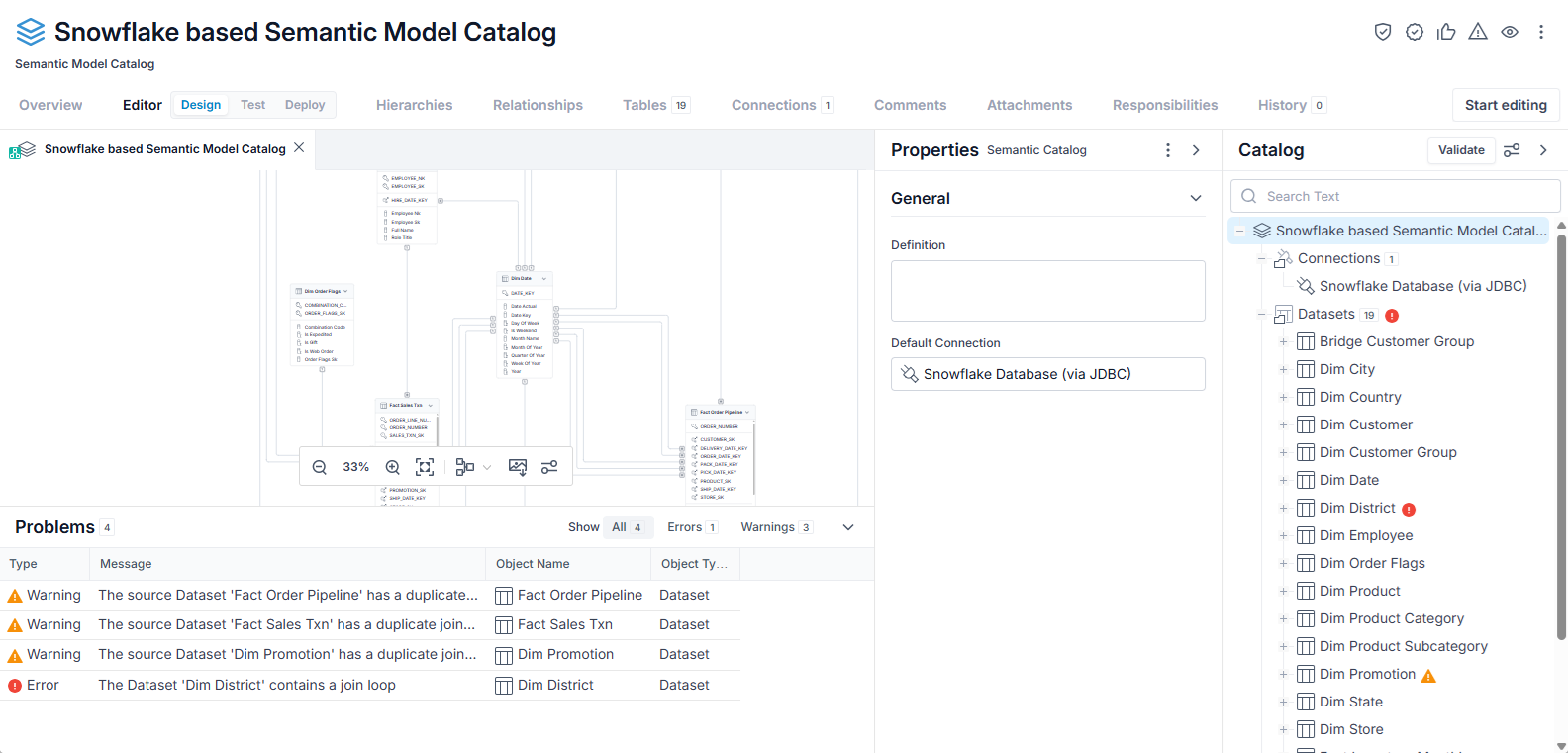
Click on the one Error.
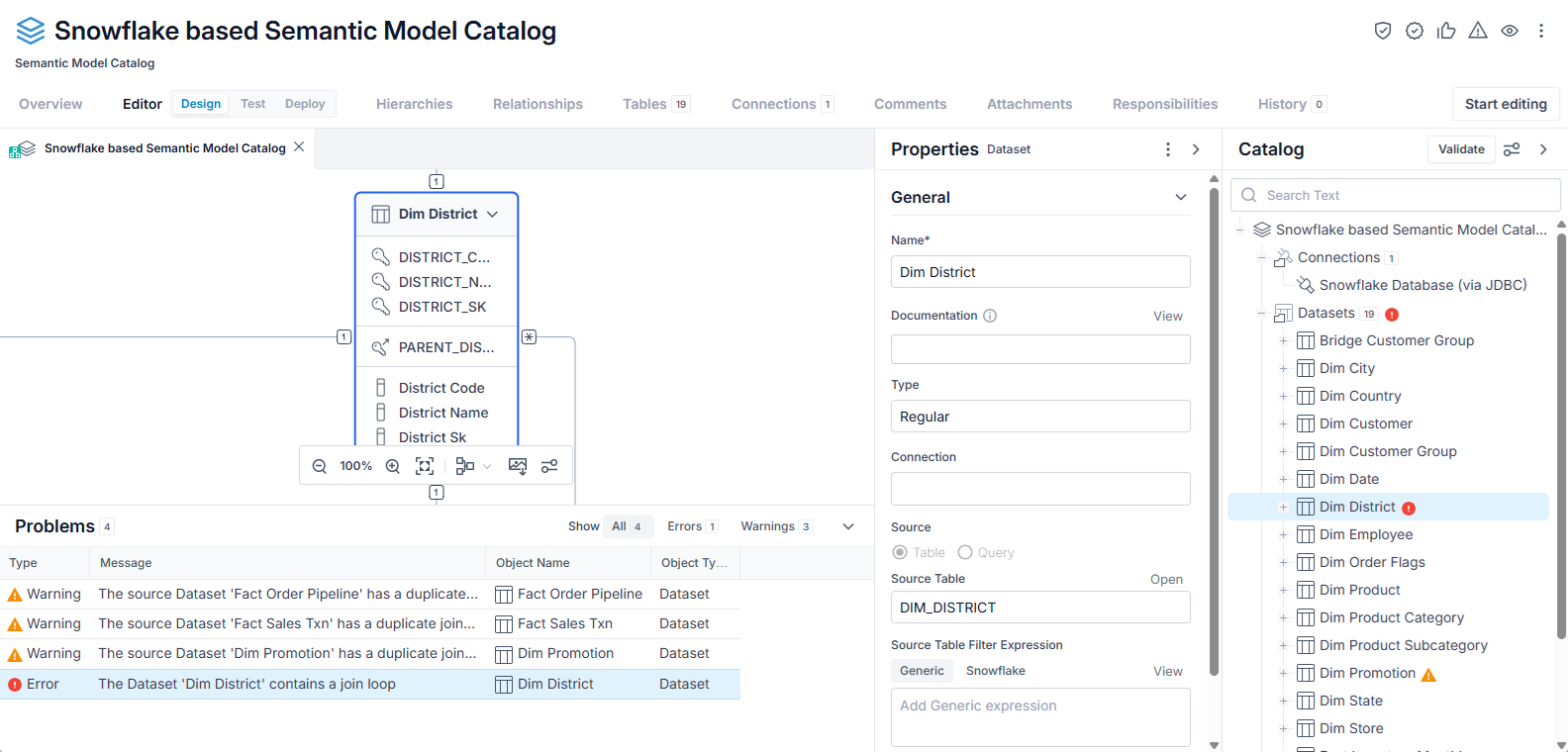
When you click on the error, all the other panels take you to the related object.
In this case, we see that the dataset Dim_District as a join to itself. It is unnecessary in this case, and we can remove it. So, click the Start Editing button, select the join and press Delete.

Click the Validate button and the error is no longer reported.
Click the Save button to save your changes.
Semantic Model Security Policies
Coming soon.
Semantic Model Native Semantic Compilation
Coming soon.
Semantic Model Performance Orchestration
Coming soon.
Design a Semantic Model for Deployment
One of the key features of the Semantic Model Catalog is to be able to deploy the model you are building into many different third party environments including other databases and BI tools. In this way, you may design once and deploy a valid and standardized design, including the proper metric definitions to all of your third party environments.
In order to do this, you should first identify the target tools to which you want to deploy one or more of the models to.
Steps
- You should be in the Editor > Design tab in the semantic model catalog.
- If not already created through the semantic model catalog import process, you should create a semantic model.
- Once you have a semantic model, click on it in the Catalog tree.
- In the Properties panel click the plus sign next to Deployments.
- Pick the third party technology platform to which you want to deploy this model
- Specify the Generate only option:
- On means only script language will be generated for that technology
- Off means you plan to deploy directly to that technology.
- If Generate only is Off then enter the specific location within an already imported model where the deployment should go.
Example
Design a Semantic Model for Deployment to Snowflake
Sign in as the Administrator user and go to the Editor > Design tab for the semantic model catalog which contains your model. Click Start Editing and go to the Catalog tree and select the model. In the Properties tab, click the plus sign next to Deployments and select Database. Then set Generate only to off.
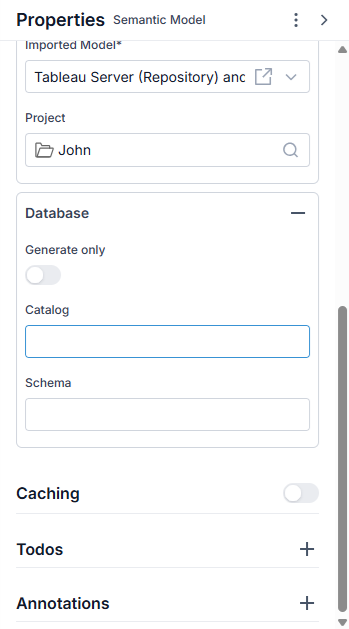
Select the Model and Project where you want to deploy the Tableau connection model which will be generated.
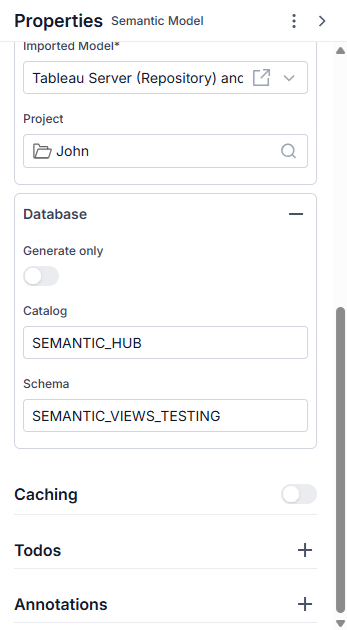
Click Stop Editing and save.
Design a Semantic Model for Deployment to Tableau
Sign in as the Administrator user and go to the Editor > Design tab for the semantic model catalog which contains your model. Click Start Editing and go to the Catalog tree and select the model. In the Properties tab, click the plus sign next to Deployments and select Tableau. Then set Generate only to off.
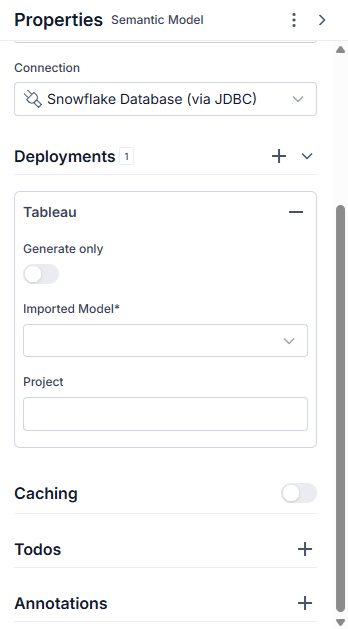
Select the Model and Project where you want to deploy the Tableau connection model which will be generated.
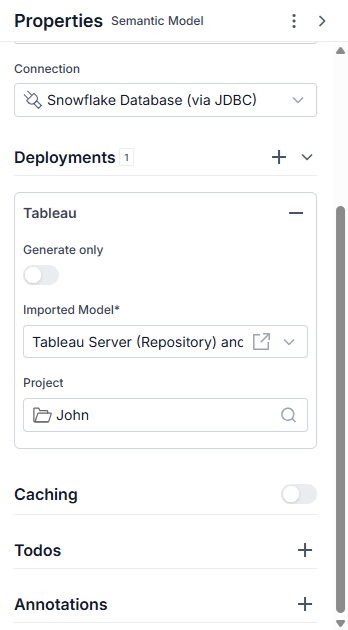
Click Stop Editing and save.
You may specify as many deployments as there are technology environments to chose from.
Design a Semantic Model for Deployment to Power BI
Sign in as the Administrator user and go to the Editor > Design tab for the semantic model catalog which contains your model. Click Start Editing and go to the Catalog tree and select the model. In the Properties tab, click the plus sign next to Deployments and select Power BI. Then set Generate only to off.
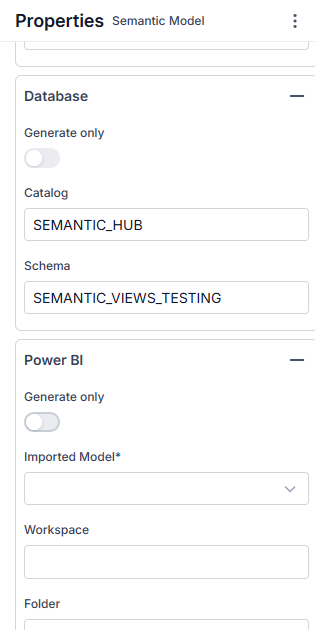
Select the Model and Workspace and Folder where you want to deploy the Tableau connection model which will be generated.
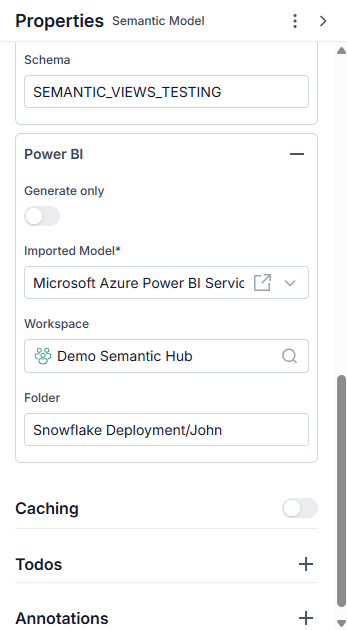
Click Stop Editing and save.
You may specify as many deployments as there are technology environments to chose from.
Pre-Deployment Test a Semantic Model in a Catalog
You may analyze the data to understand how the semantic model will work on the actual data with the Test tab functionality.
Deploy a Semantic Model from a Catalog
One of the key features of the Semantic Model Catalog is to be able to deploy the model you are building into many different third party environments including other databases and BI tools. In this way, you may design once and deploy a valid and standardized design, including the proper metric definitions to all of your third party environments. One semantic model compiles into native artifacts across data and BI platforms, from legacy to modern and on-premises to cloud. Add and remove new databases or BI targets to support team tool preferences without redefining a single metric.
In order to do this, you should first identify the target tools to which you want to deploy one or more of the models to, define how and where these models should be deployed for each target technology environment, and the deploy.
Steps
- If not already created through the semantic model catalog import process, you should create a semantic model.
- Use the model catalog to specify the deployment properties.
- Be sure to click Stop Editing if editing is still enabled and save if ncessary.
- Once you have a semantic model that is ready for deployment, go to the Editor > Deploy tab.
- Select the Model to deploy and click Deploy for the target technology to which you wish to deploy.
- You may also Download a script which could be used within the third party tool environment to create the deployed schema or report information.
Example
Deploy a Database based Semantic Model
Deploy a Snowflake based Model to Power BI
Sign in as the Administrator user and go to the Editor > Deploy tab for the semantic model catalog which contains your model. Select the Fact Sales Transaction Model and click Deploy for Snowflake Database.
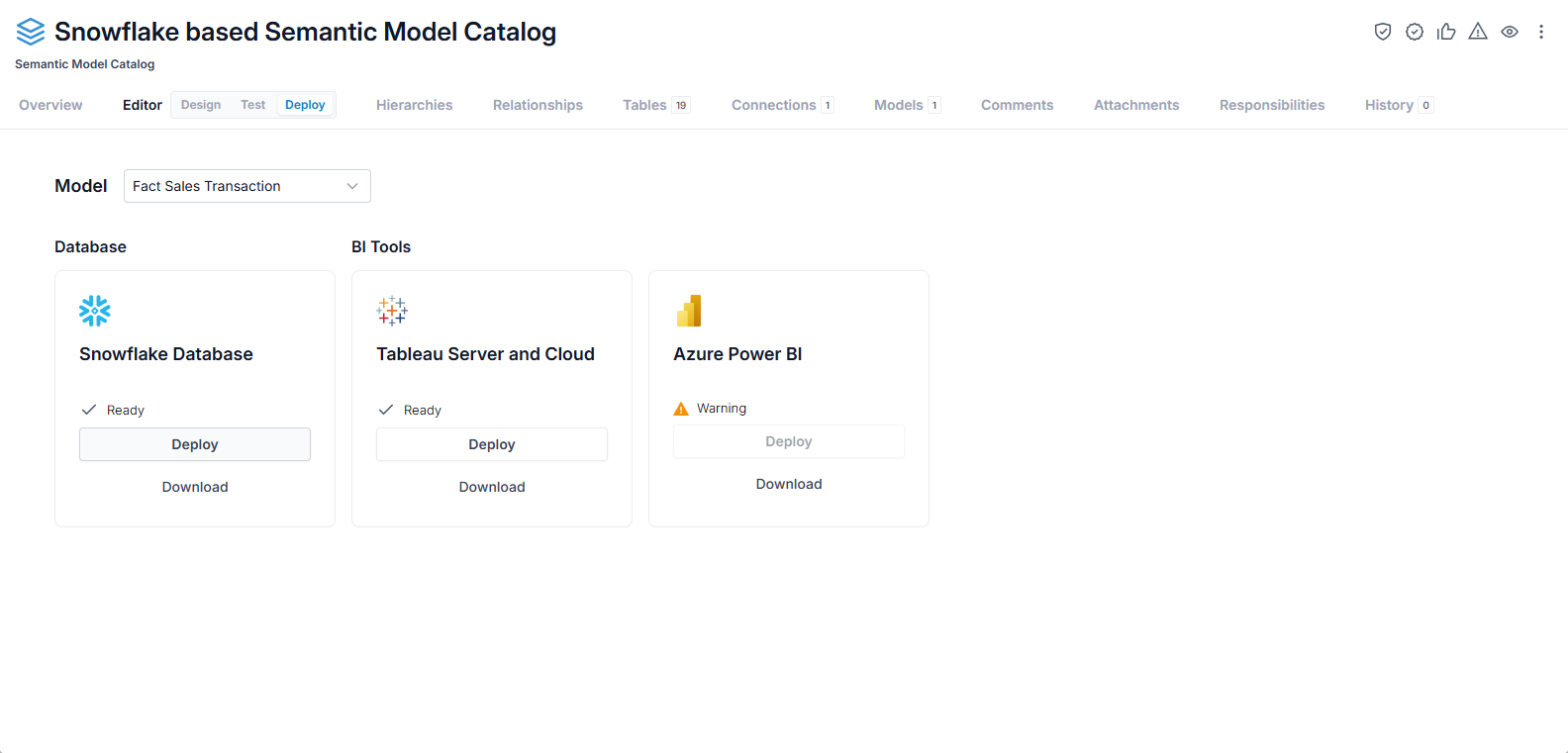
And the semantic view is created in Snowflake:
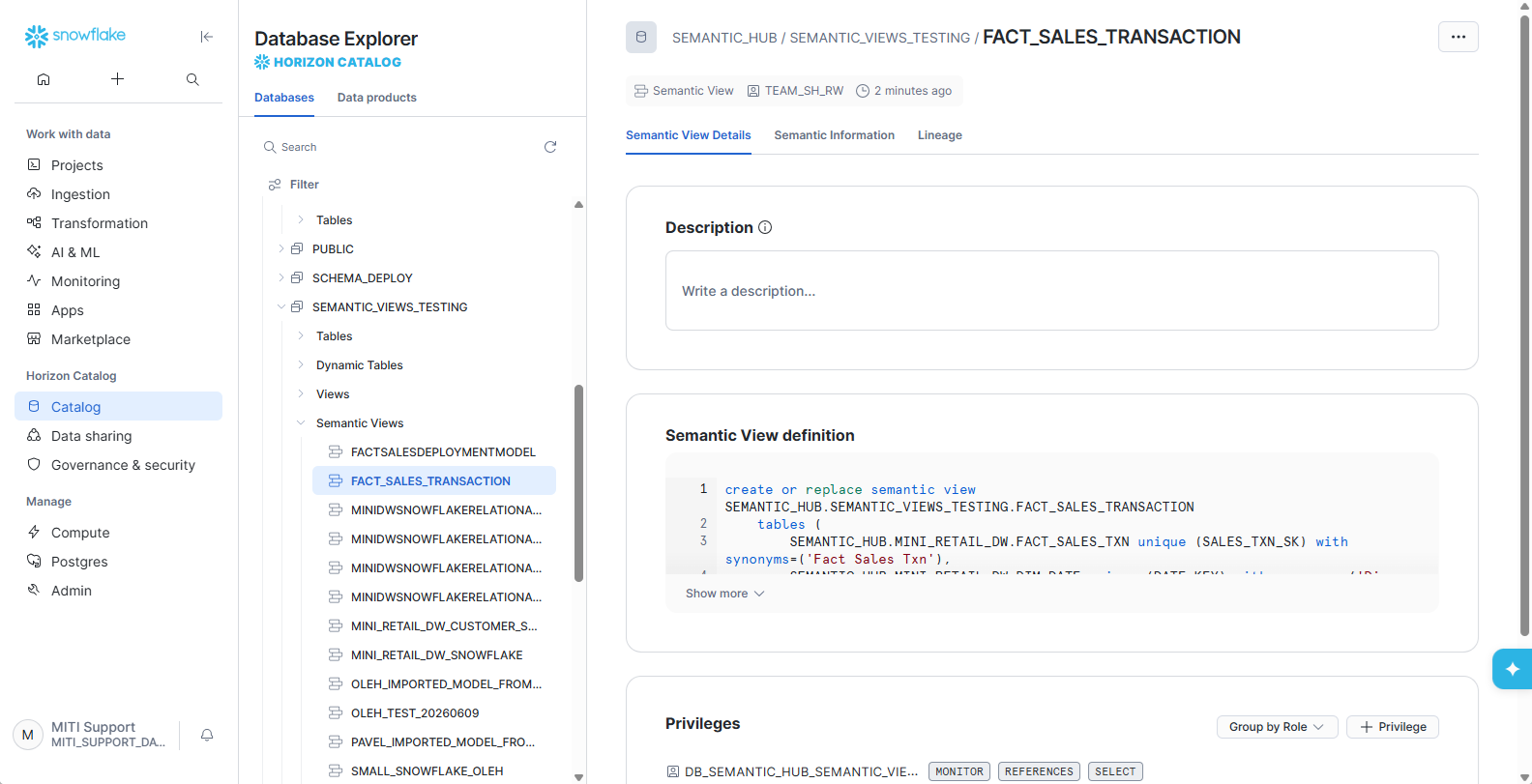
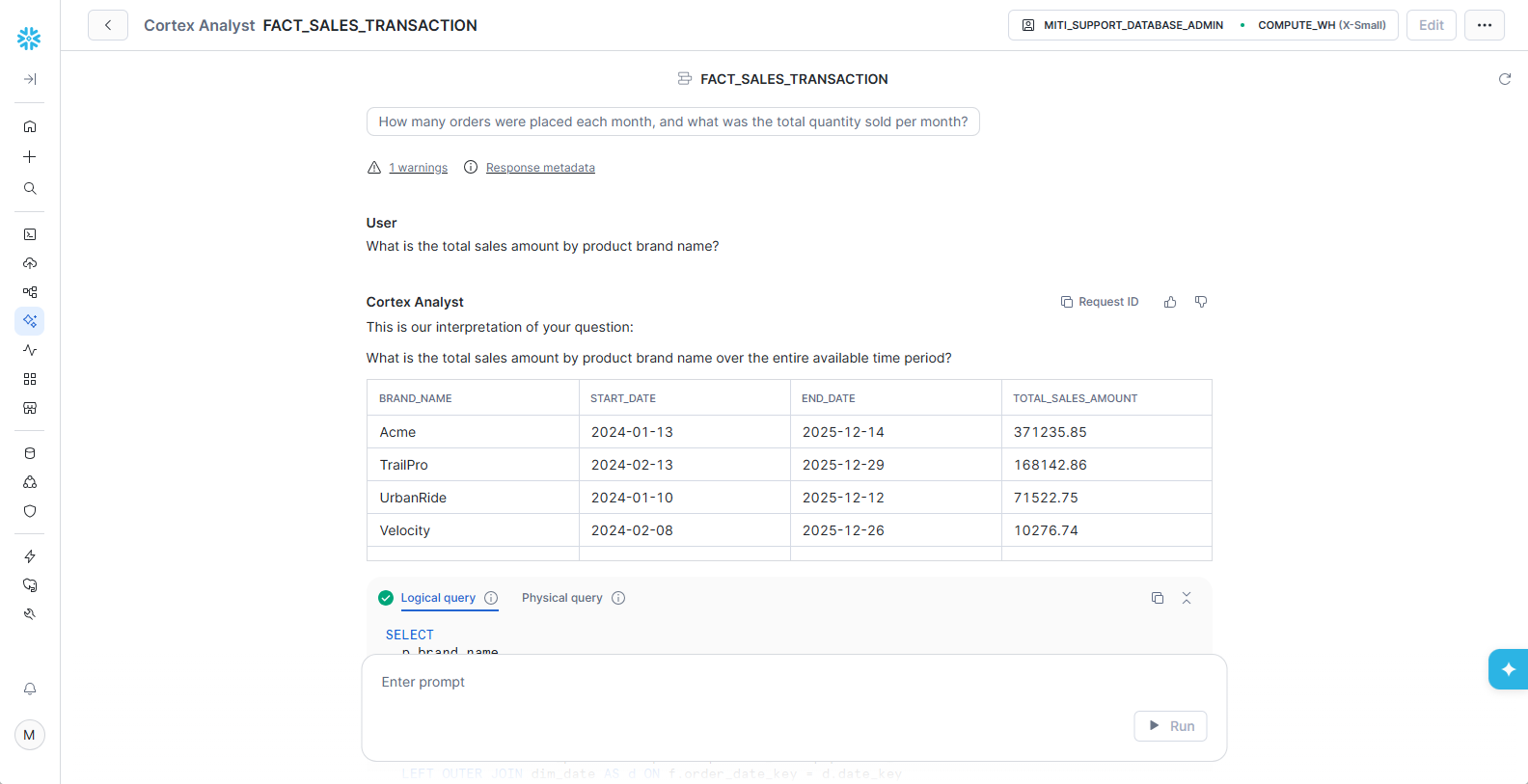
You may now use this semantic view to analyze the data using Snowflake Cortex.
Start up Cortex on the semantic view and ask the question "What is the total sales amount by product brand name?"
Deploy a Snowflake based Model to Tableau
Sign in as the Administrator user and go to the Editor > Deploy tab for the semantic model catalog which contains your model. Select the Fact Sales Transaction Model and click Deploy for Tableau Server and Cloud.
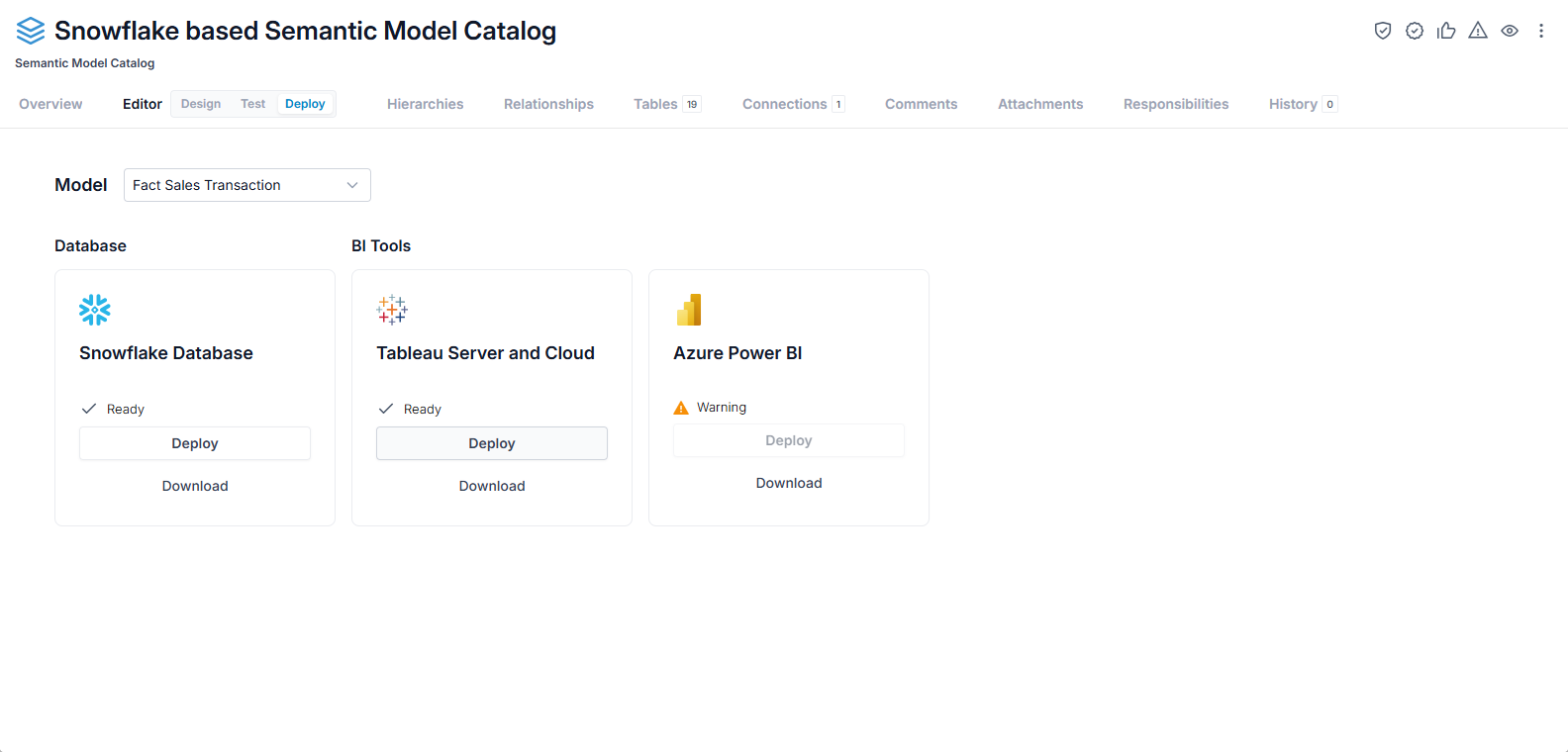
And the connection model is created in Tableau:
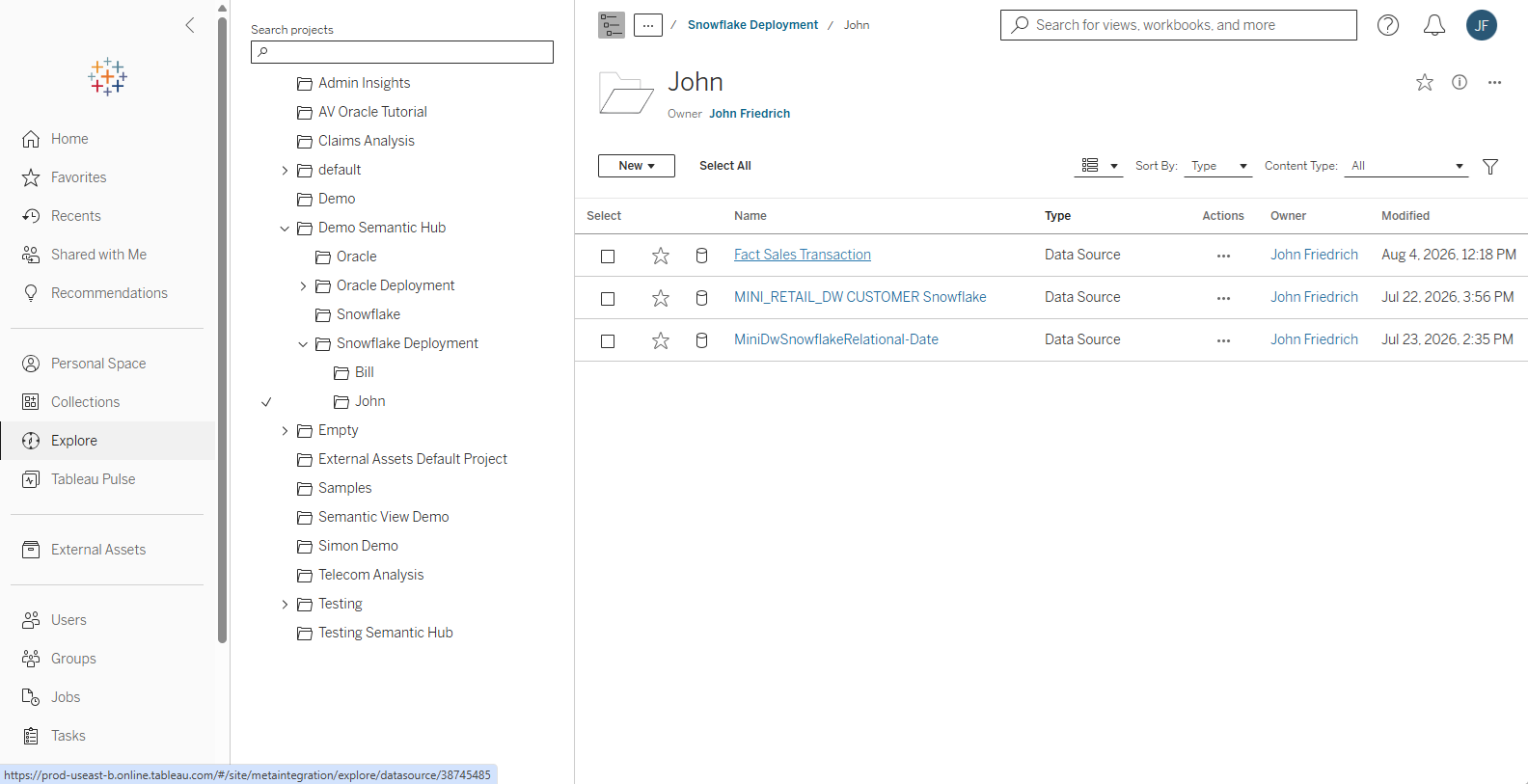
You may now use this connection model to derive workbooks and reports.
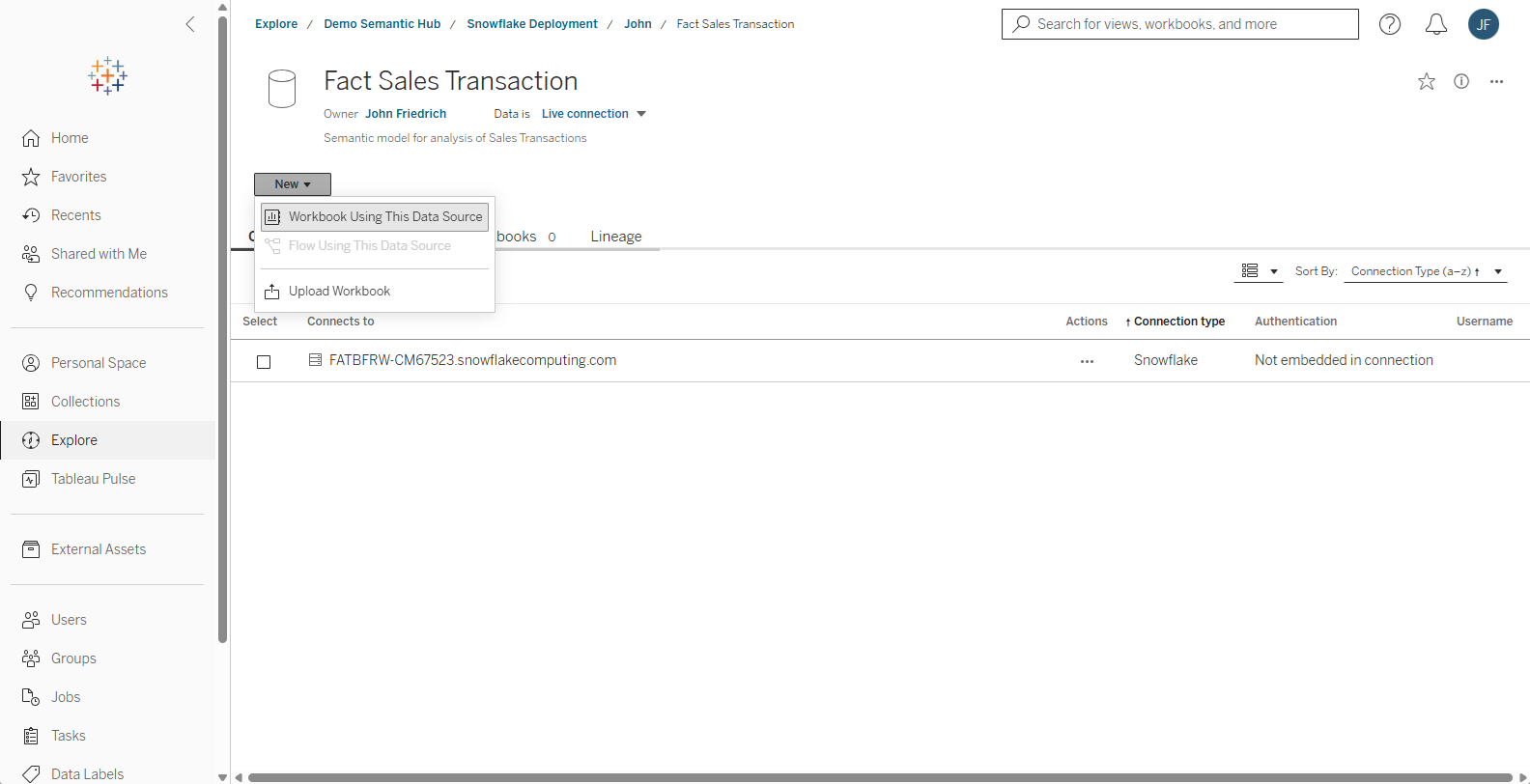
Deploy a Snowflake based Model to Power BI
Sign in as the Administrator user and go to the Editor > Deploy tab for the semantic model catalog which contains your model. Select the Fact Sales Transaction Model and click Deploy for Azure Power BI.
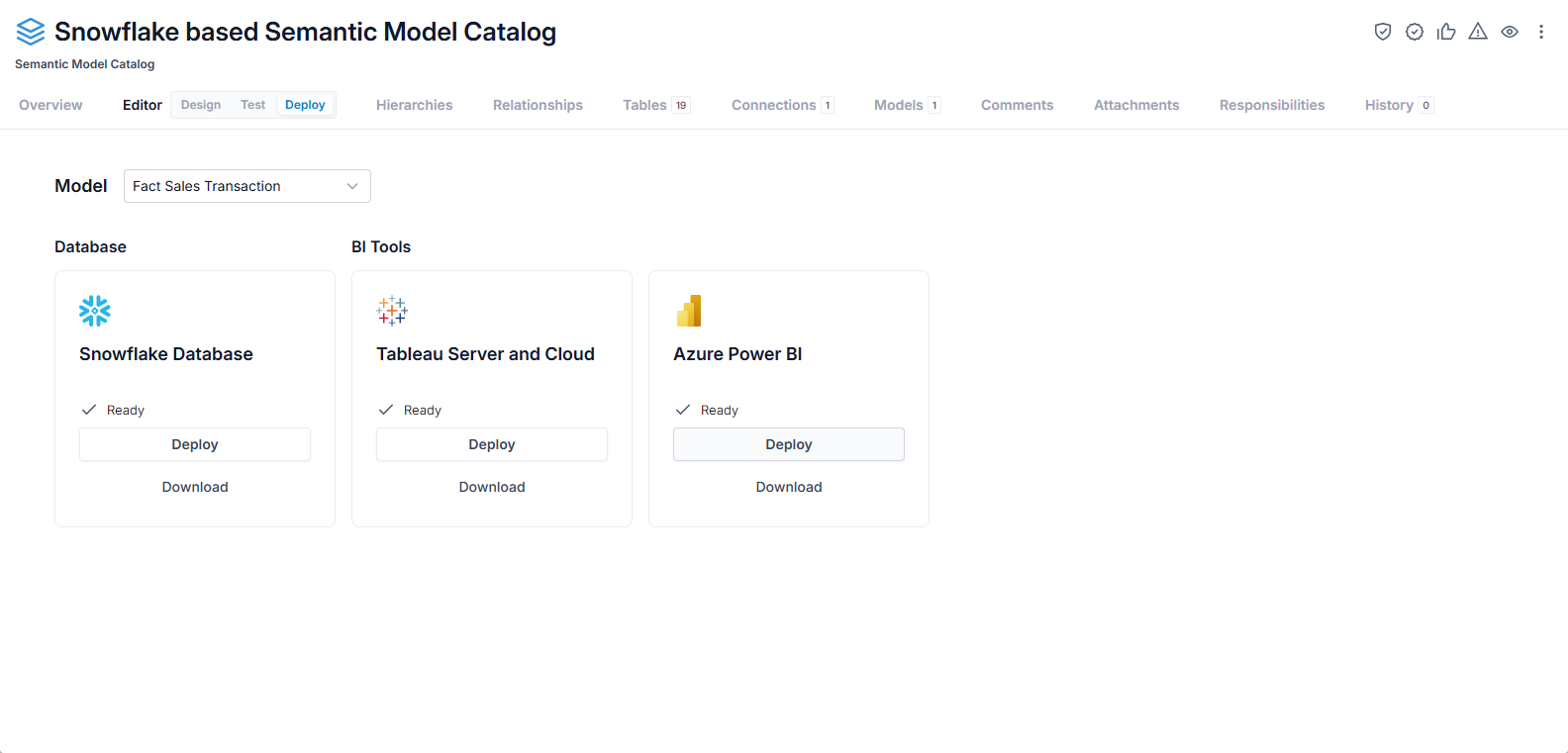
And the connection model is created in Tableau:
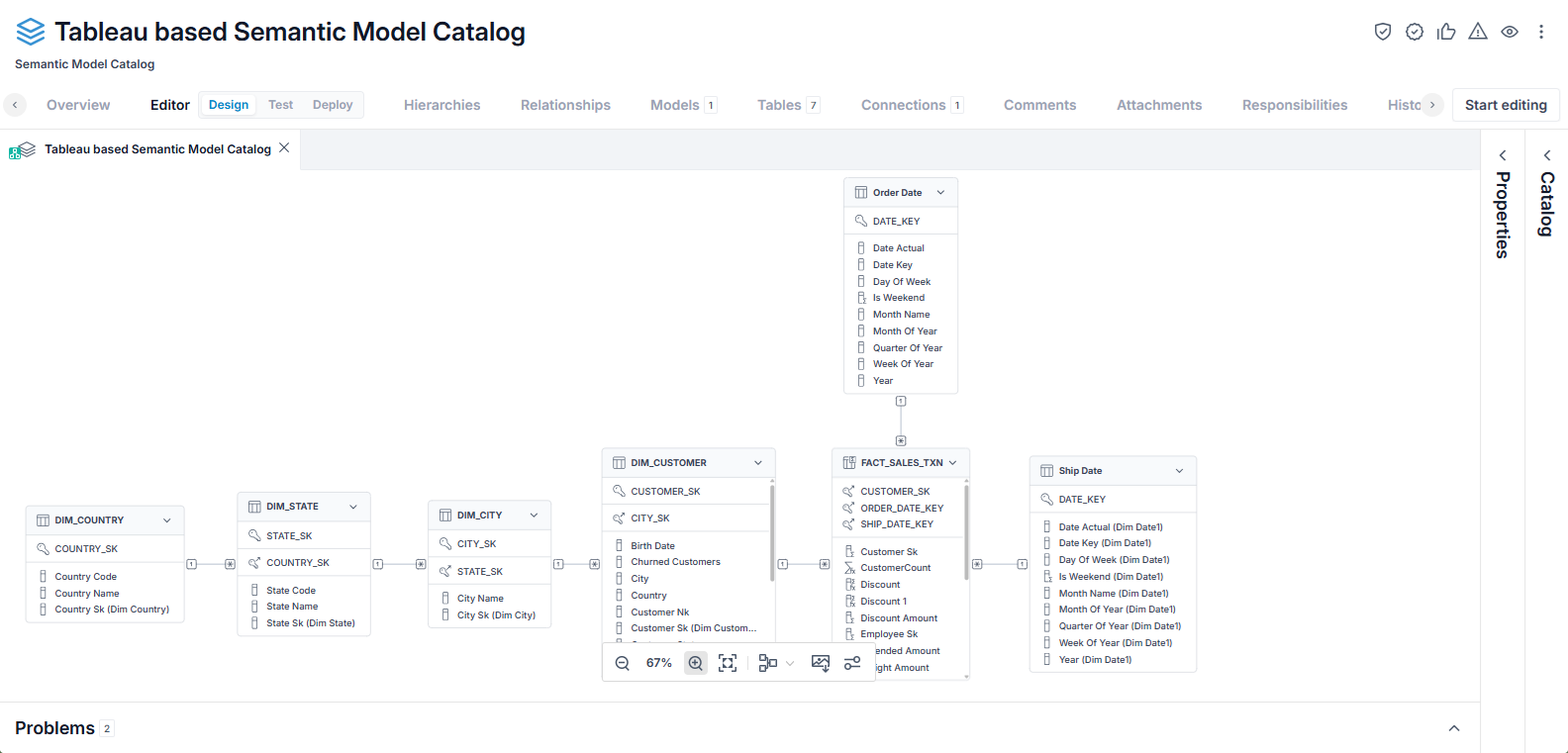
You may now use this semantic model to derive workbooks and reports.
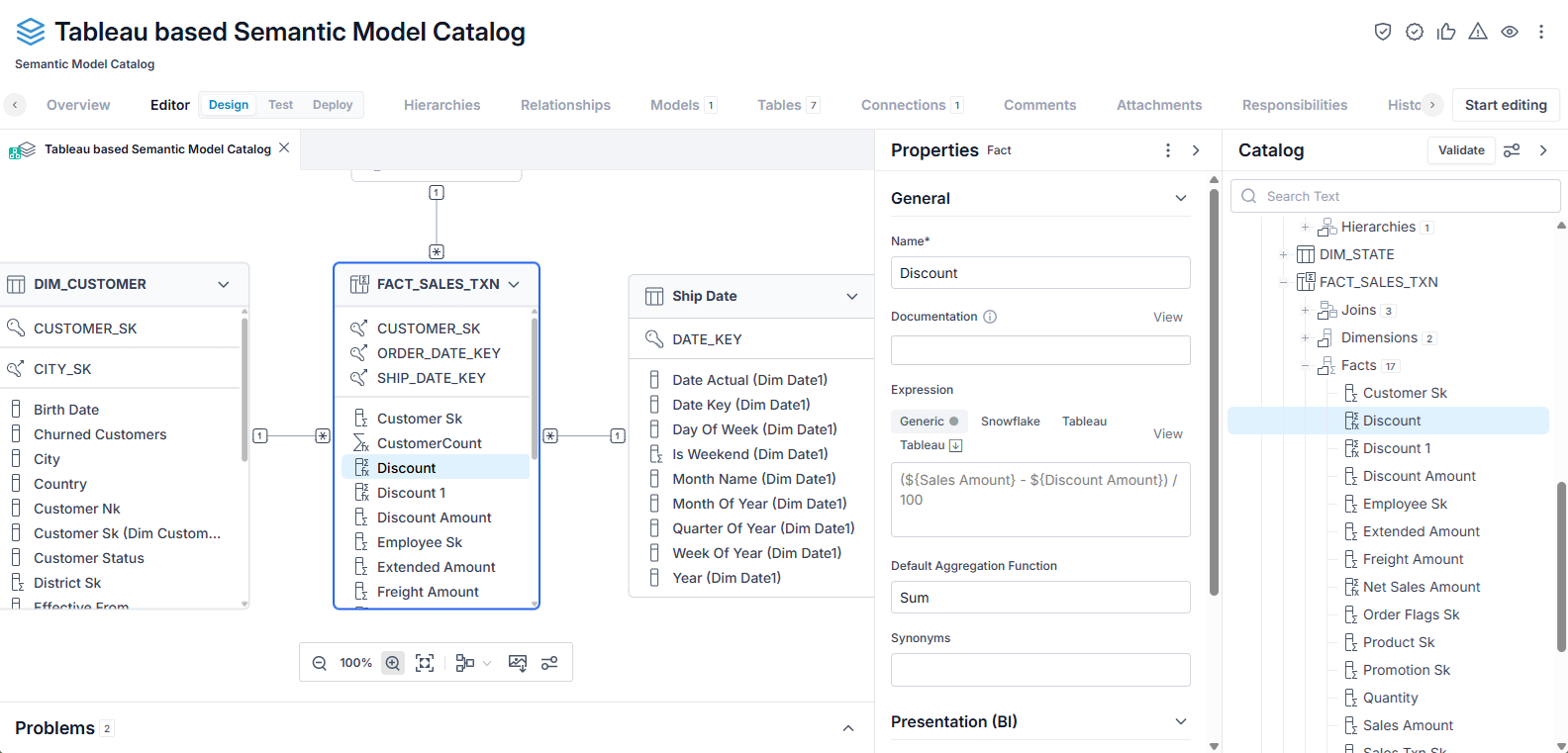
Semantic Hub from Tableau
The steps are as follows:
Steps
- Create a Semantic Model Catalog Model
- Import Semantic Model Content from a Tableau Workbook.
- Merge Semantic Model Content with another imported Tableau Workbook
- Design a Semantic Model for Deployment
- Translate Expressions to the target deployment technologies
- Deploy the Semantic Model from the catalog.
Example
After completing the steps above, here are the results, for each of three Target technologies:
- Deploy a Tableau based Model to Snowflake
- Deploy a Tableau based Model to Tableau
- Deploy a Tableau based Model to Power BI
Deploy a Tableau based Model to Snowflake
Click the Deploy button on the Editor > Deploy tab under Snowflake Database.
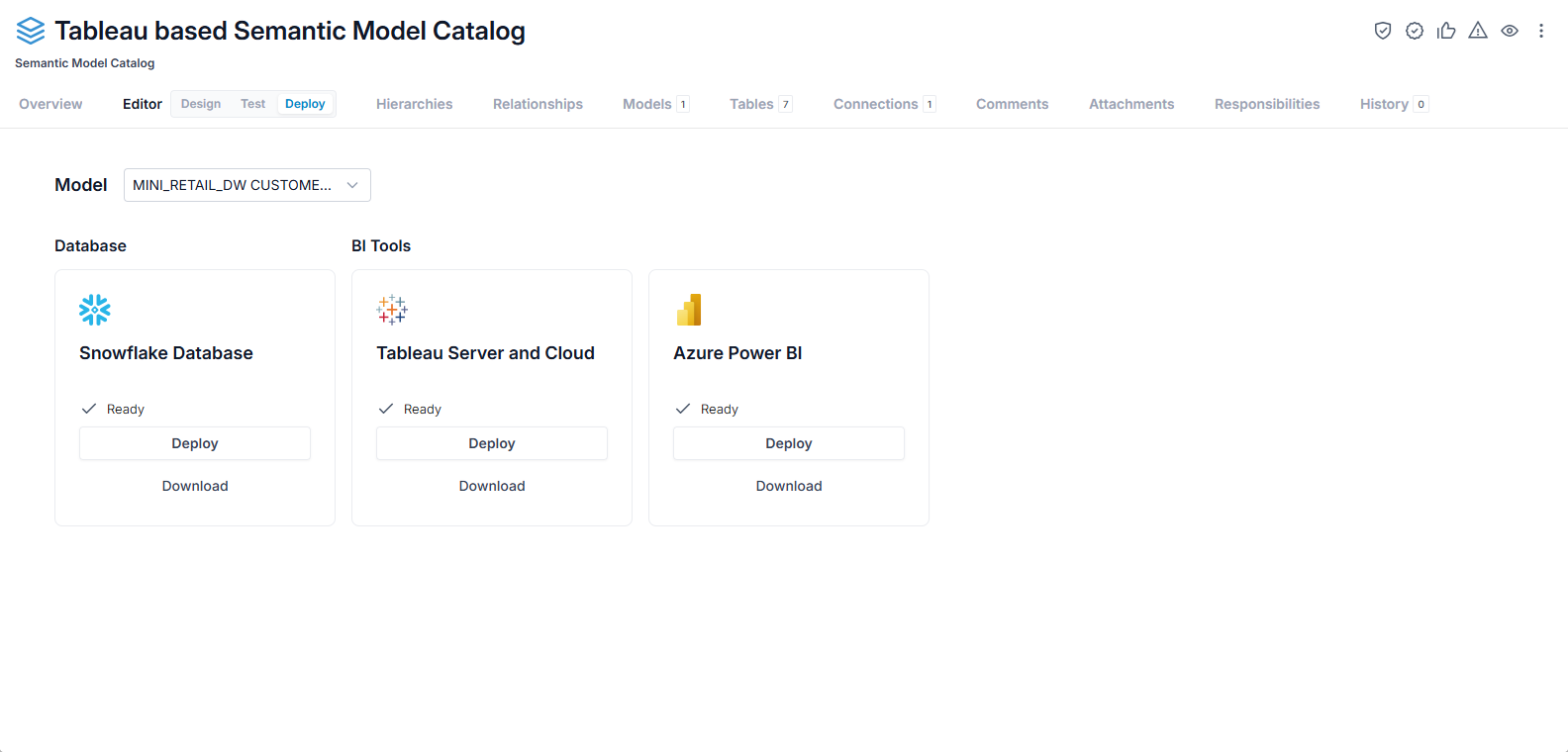
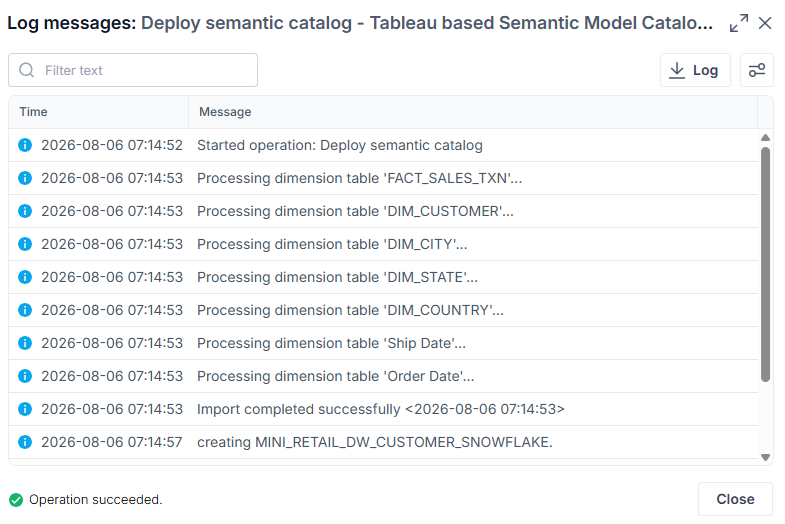
The model is Deployed.
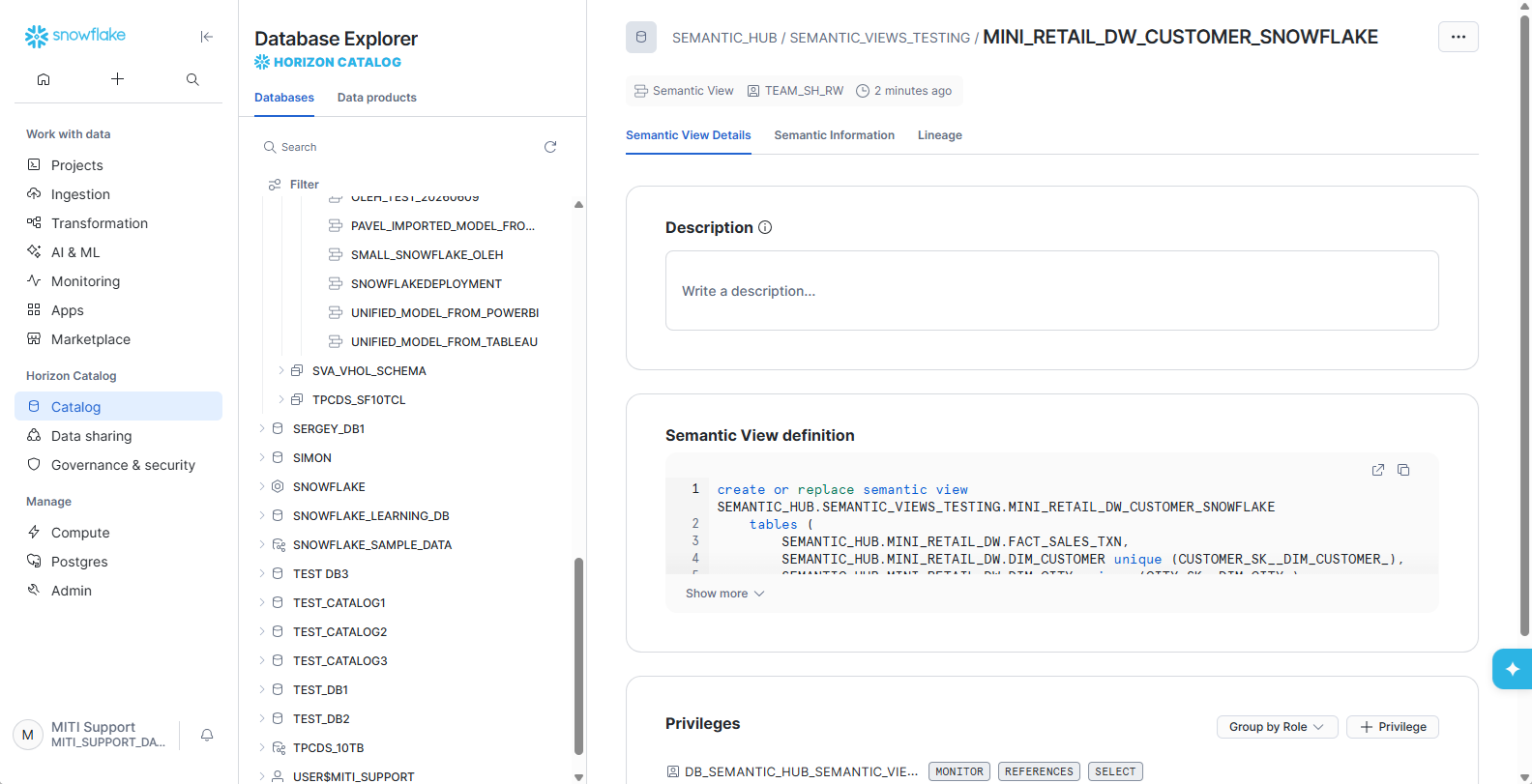
And the semantic view is created in Snowflake:
Deploy a Tableau based Model to Tableau
Click the Deploy button on the Editor > Deploy tab under Tableau Server and Cloud.
The model is Deployed.
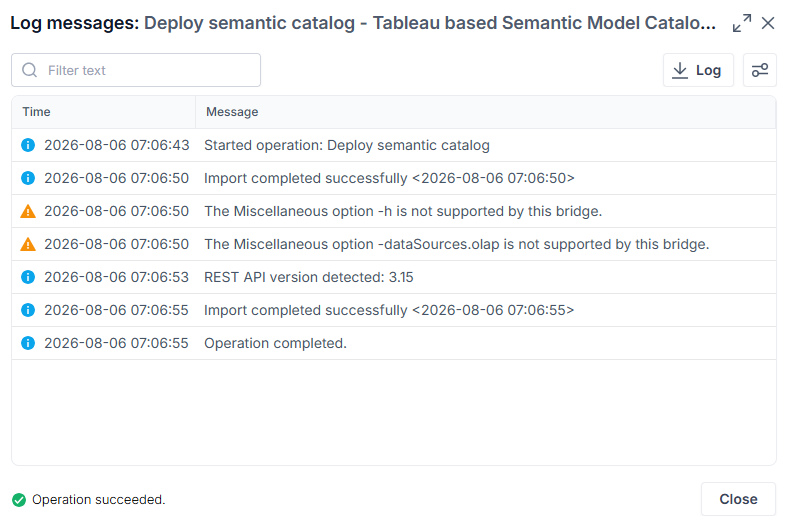
And the connection model is created in Tableau:
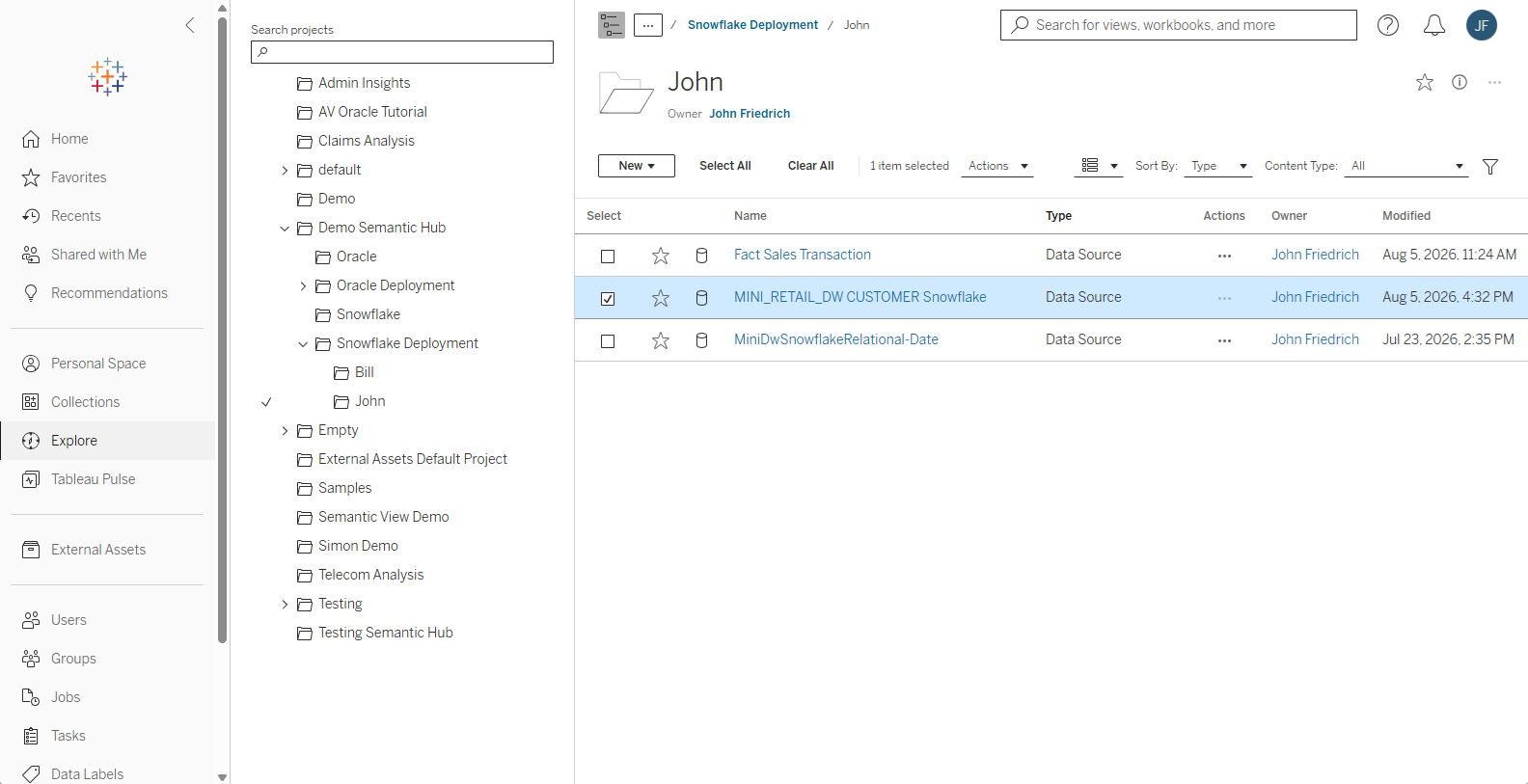
You may now use this connection model to derive workbooks and reports.
Deploy a Tableau based Model to Power BI
Click the Deploy button on the Editor > Deploy tab under Azure Power BI.
The model is Deployed.
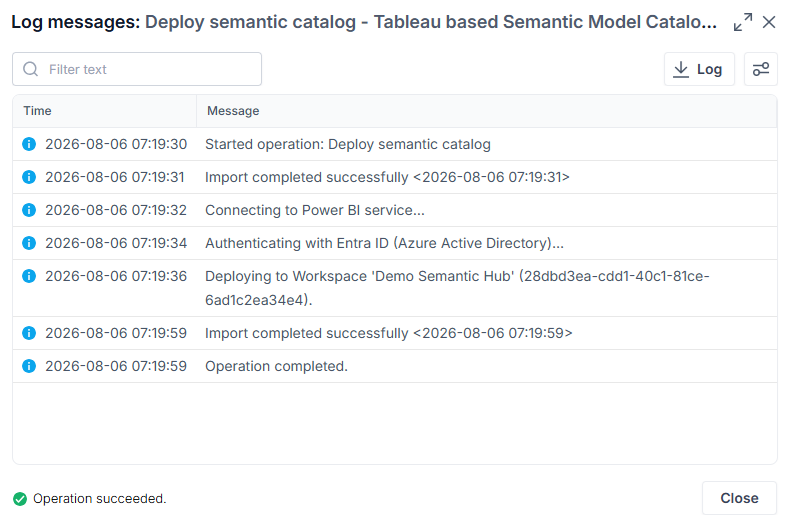
And the semantic model is created in Power BI:
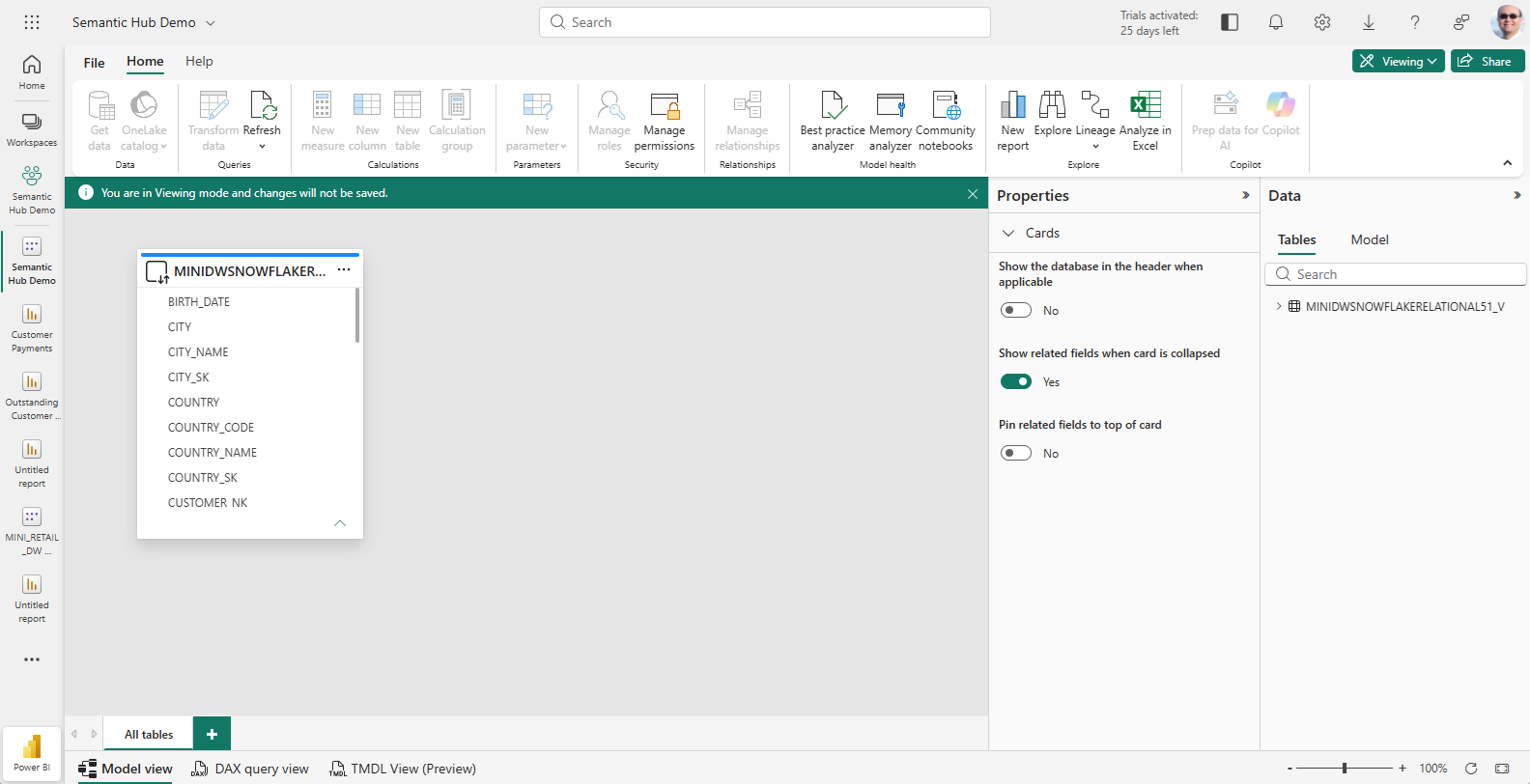
You may now use this connection model to derive workbooks and reports.
Semantic Hub from Power BI
The steps are as follows:
Steps
- Create a Semantic Model Catalog Model
- Import Semantic Model Content from a Tableau Workbook.
- Merge Semantic Model Content with another imported Tableau Workbook
- Design a Semantic Model for Deployment
- Translate Expressions to the target deployment technologies
- Deploy the Semantic Model from the catalog.
Example
After completing the steps above, here are the results, for each of three Target technologies:
- Deploy a Power BI based Model to Snowflake
- Deploy a Power BI based Model to Tableau
- Deploy a Power BI based Model to Power BI
Deploy a Power BI based Model to Snowflake
Click the Deploy button on the Editor > Deploy tab under Snowflake Database.
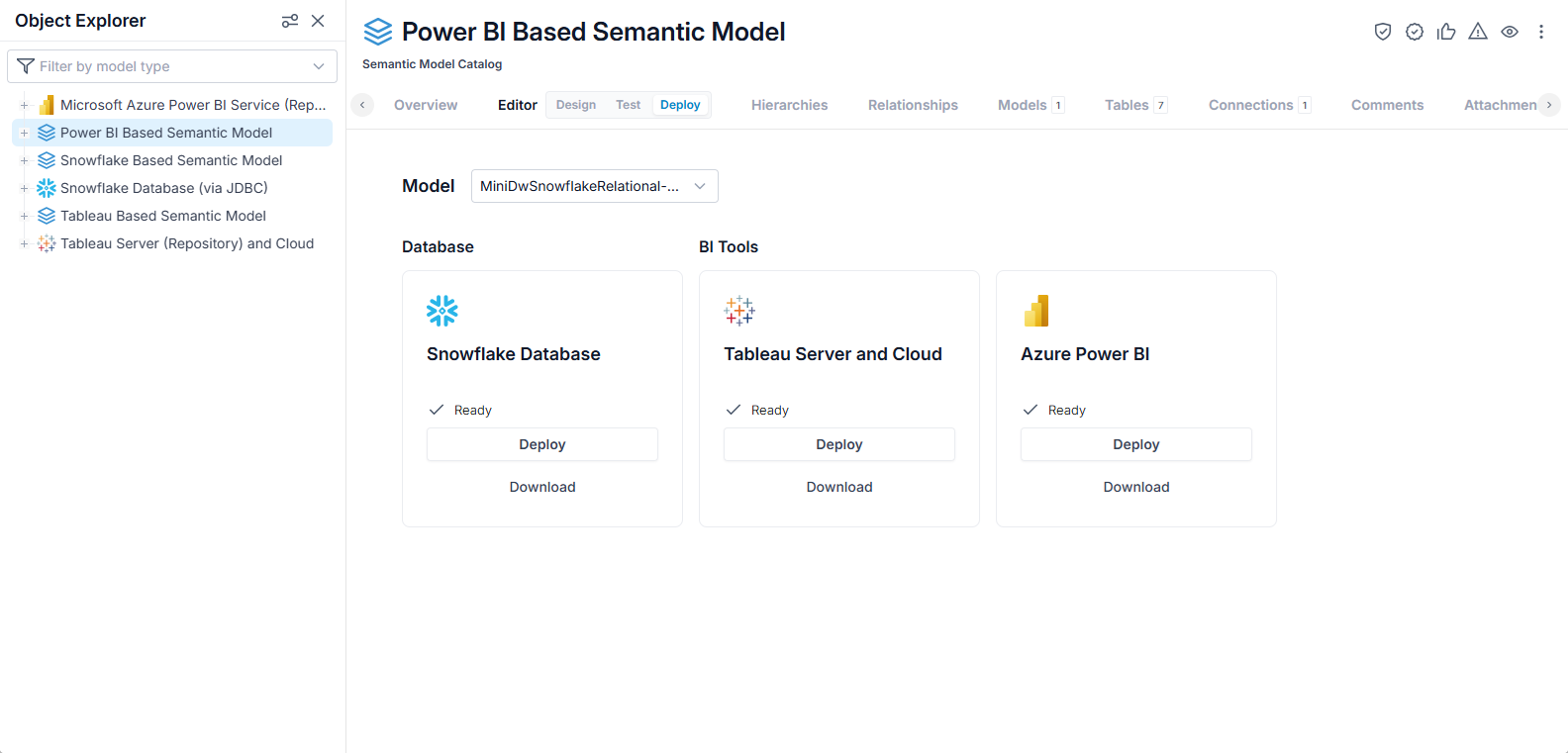
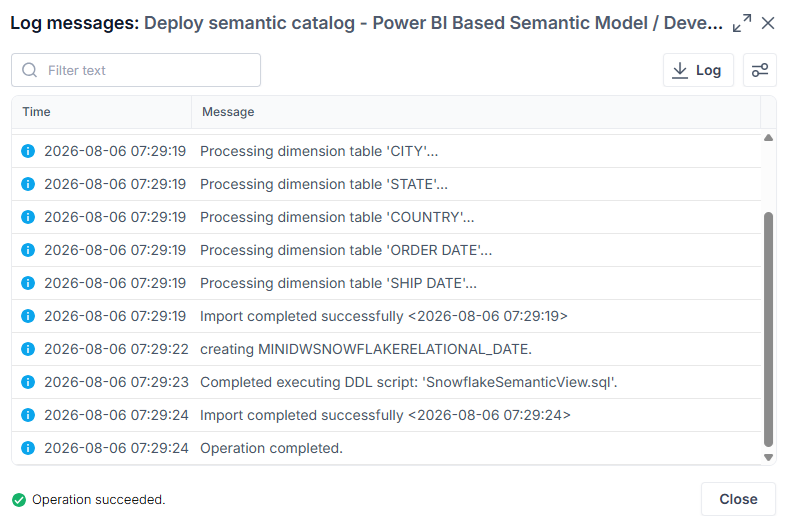
The model is Deployed.
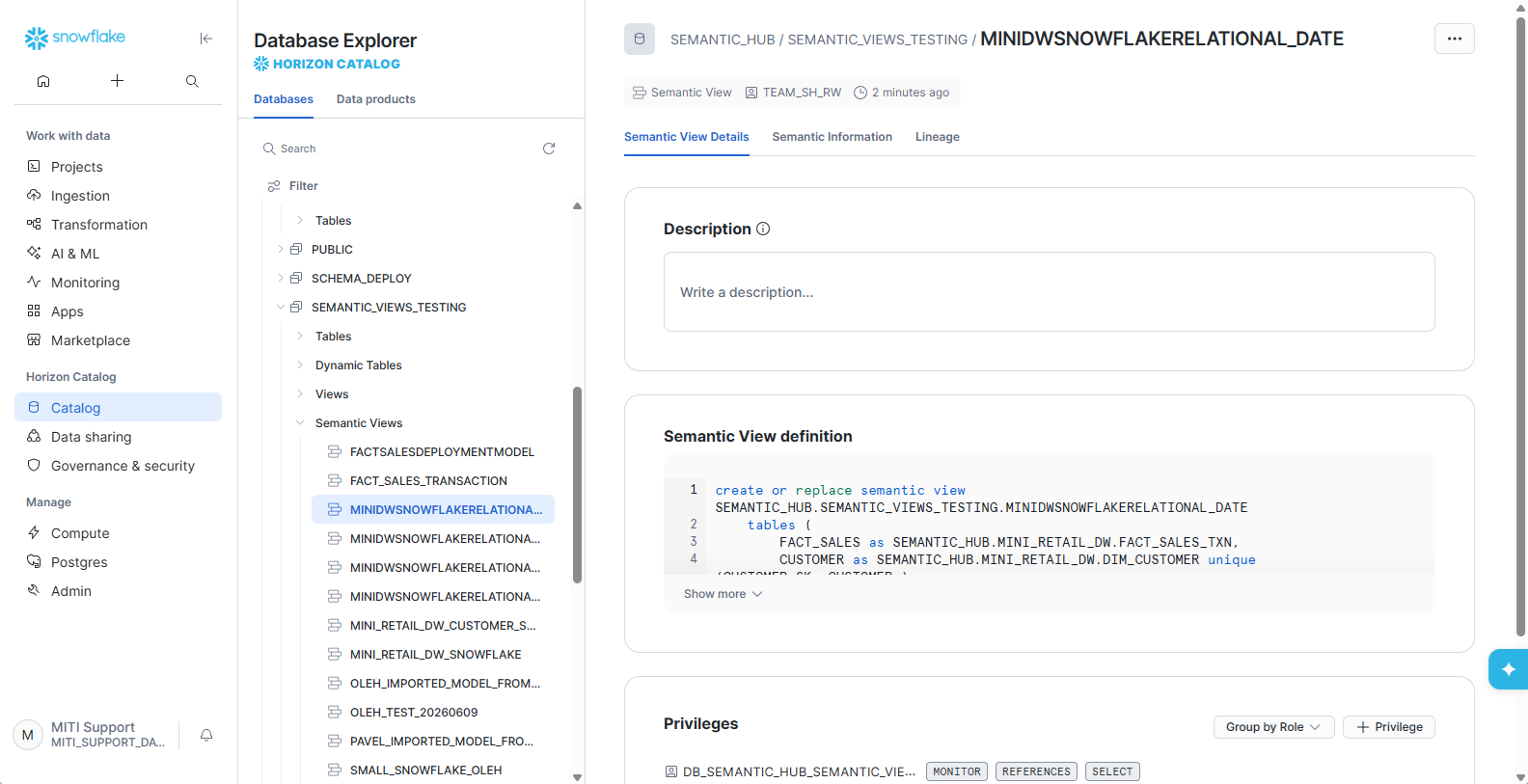
And the semantic view is created in Snowflake:
Deploy a Power BI based Model to Tableau
Click the Deploy button on the Editor > Deploy tab under Tableau Server and Cloud.
The model is Deployed.
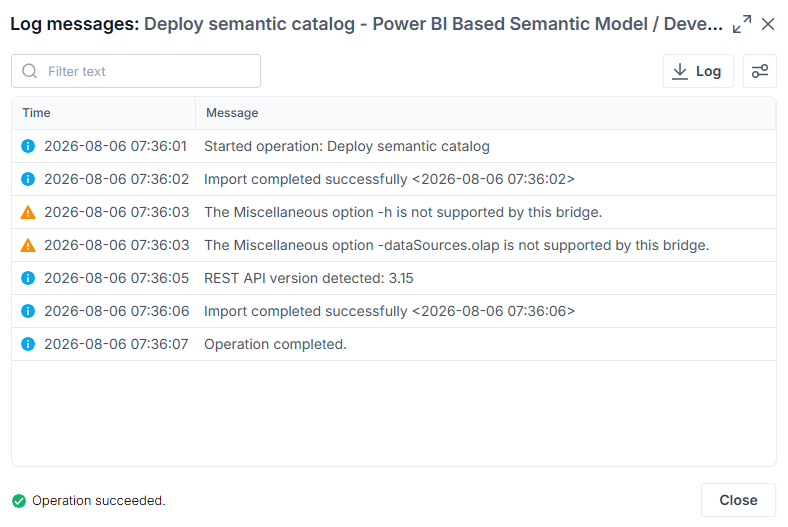
And the connection model is created in Tableau:
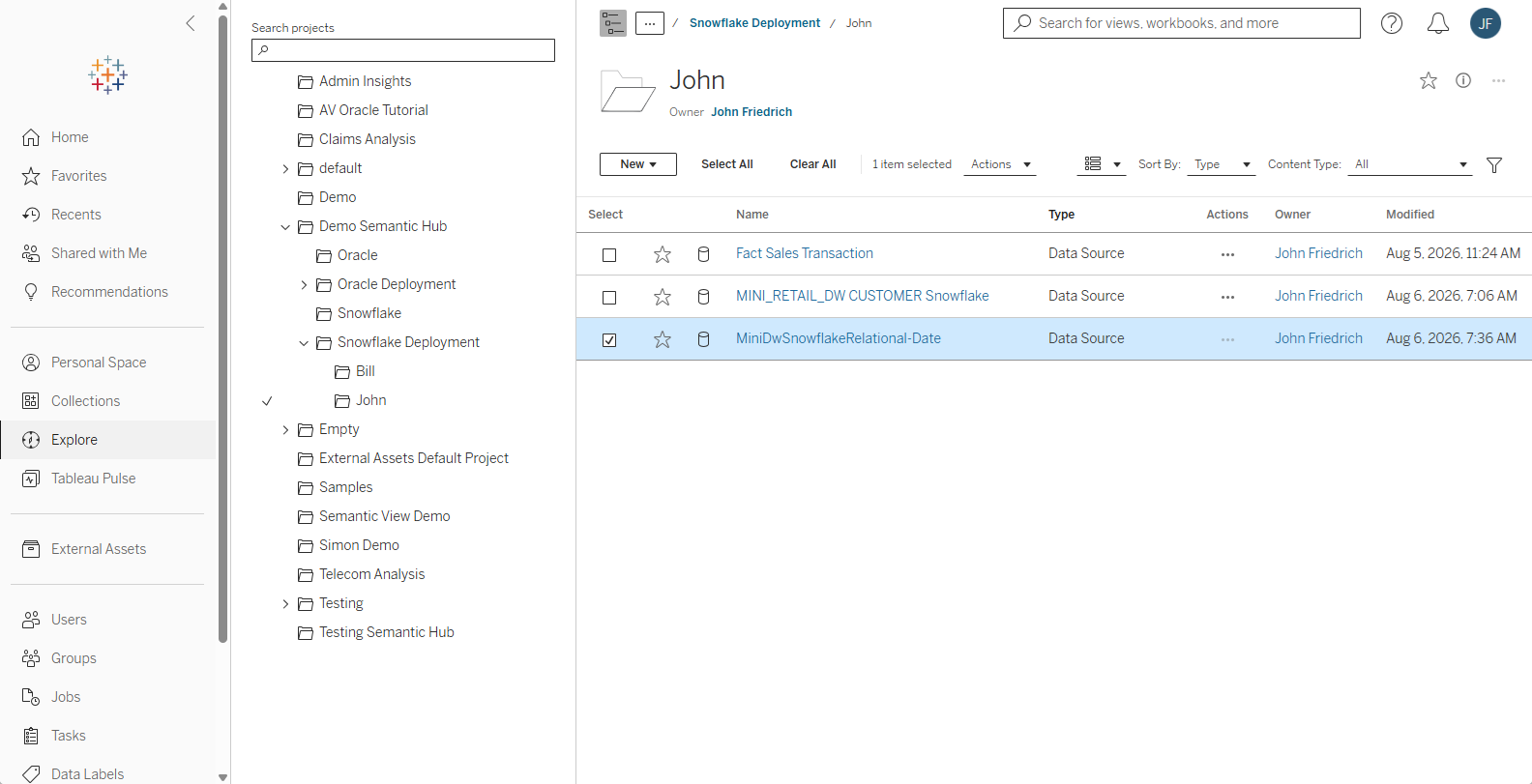
You may now use this connection model to derive workbooks and reports.
Deploy a Power BI based Model to Power BI
Click the Deploy button on the Editor > Deploy tab under Azure Power BI.
The model is Deployed.
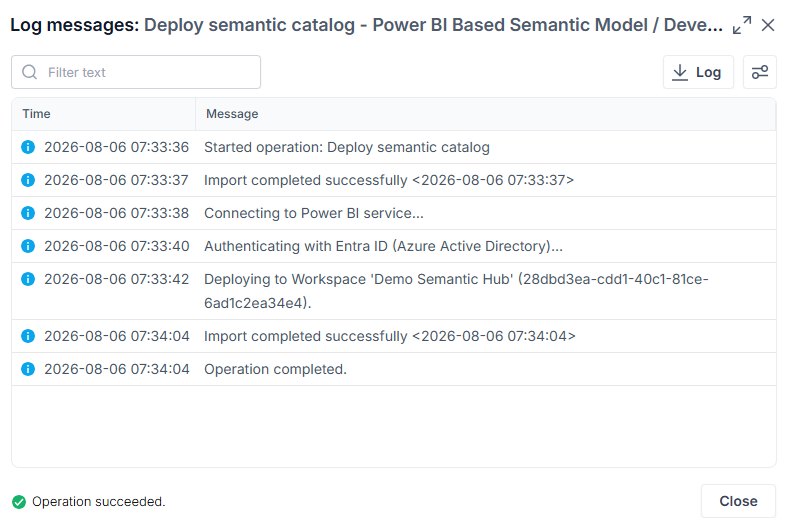
And the semantic model is created in Power BI:
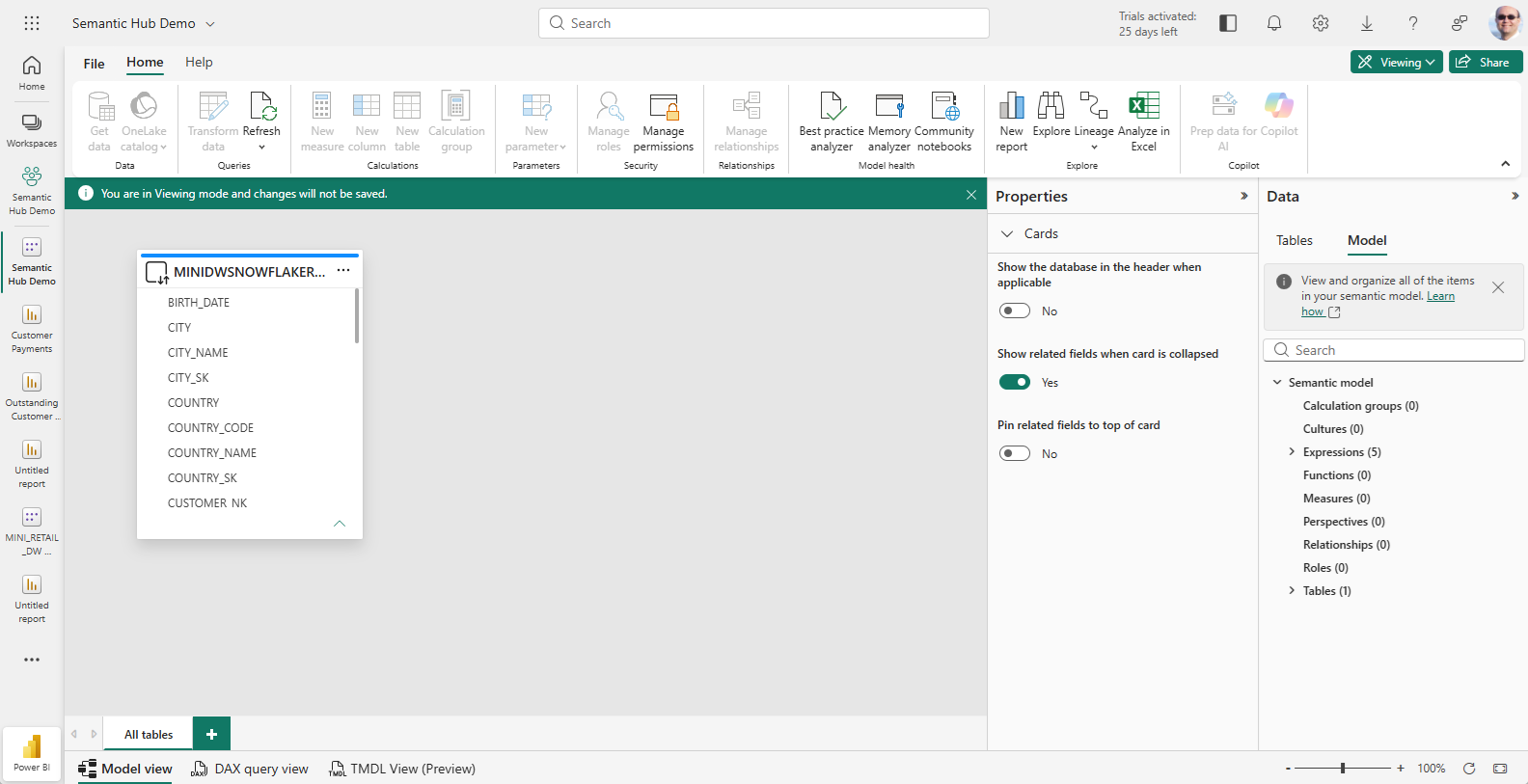
You may now use this connection model to derive workbooks and reports.
Git and CI-CD Integration
Coming soon.