Semantic Hub Import
Important Disclaimer: Some of the features detailed in this document may not apply and/or be available for the particular edition/version you are using.
Import and define semantic models from existing databases and BI platforms, both legacy and modern self-service, instead of starting from scratch.
Semantic Hub from Database Platforms
Support platforms include Oracle, Snowflake, Databricks, SAP HANA, and more.
- Role-Playing Dimension Resolution - Detect a single dimension table joined to the same fact multiple times, such as a date table serving order date, ship date, and delivery date, and generate uniquely named, aliased copies for each. No manual aliasing, no ambiguous join paths.
- Self-Join Flattening - Resolve self-referencing tables, like an employee table where manager ID points back to the same table, into one level of parent/child indirection. The hierarchy becomes queryable without infinite recursion.
- Before/After Schema Comparison - Toggle between the raw, as-imported schema and the cleaned, flattened, aliased version to see exactly what changed.
- Relationship Detection Beyond Keys - Follow documented relationships from ER diagrams and infer relationships already established in BI tool joins. Inferred joins are marked visually and flagged for review before anything’s finalized, so nothing gets assumed silently.
- Incremental Catalog Merge - Import into an existing semantic catalog instead of starting over. A merge view shows the base catalog, the incoming import, and the merged result side by side as a tree, with a YAML diff and a problems list surfacing conflicts before it is applied.
Semantic Hub from Snowflake
Create a Semantic Model Catalog Model
In order to work with semantic models in MetaKarta you must first create a custom model that is a Semantic Model Catalog. In way, you work with any number of related semantic models
Steps
- Sign in as a user with at least the Metadata Management capability object role assignment on the Configuration you are in.
-
Go to Manage > Configuration in the main menu.
-
Click Add > New Model under Configuration Manager.
-
Select the Custom Model radio button for Model Type.
-
Select the Semantic Model Catalog for Model Type.
-
Provide a Name.
-
Click OK.
Example
Sign in as the Administrator user, go to Manage > Configuration in the main menu and click Add > New Model under Configuration Manager.
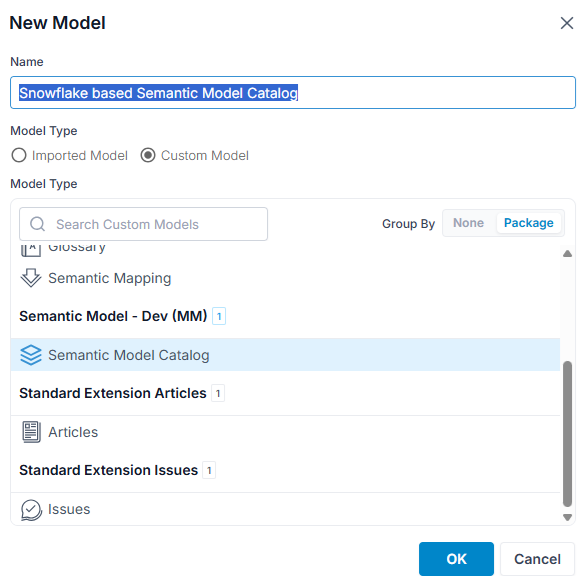
Enter the values as above and click OK.
Import Semantic Model Content from a Database
Once you have a semantic model catalog, you may import metadata to use in semantic models directly from a database.
Steps
- Sign in as a user with at least the Metadata Management capability object role assignment on the semantic model catalog into which you will import.
You must also include in the same configuration an already imported model from the specific database from which you wish to import.
- Open the semantic model catalog. Create one first if needed.
- Go to the Overview tab.
- Click Data Warehouse under Import Sources.
- Select the Database Type, e.g., Snowflake.
- Select the Model. This will be an already imported database model in the same configuration.
- Provide a Name.
- Select the Catalog from the that model.
- Select the Schema from that catalog.
- Click OK.
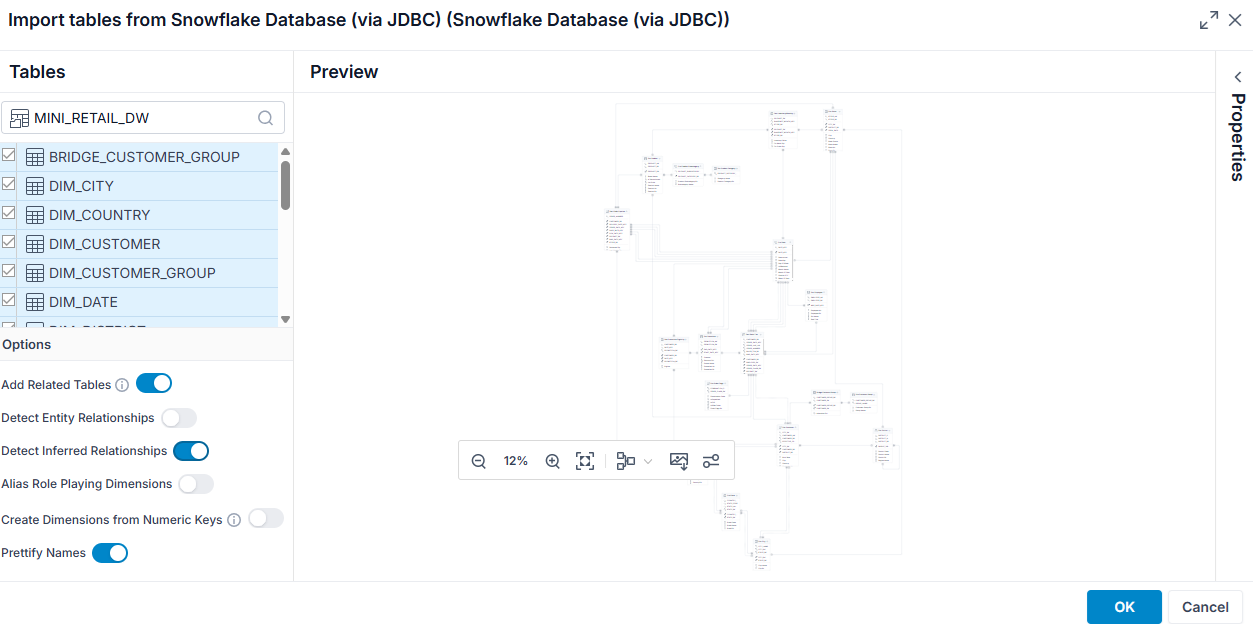
- Pick the Tables to include when importing. You may use CTRL-click, SHIFT-click and CTRL-A to select multiples.
- Turn on or off Add Related Tables. If on, all tables that are referenced by the selected tables (using their foreign keys) will also be added to the semantic catalog.
- Turn on or off Detect Entity Relationships. If on, all tables entity relationships will also be added to the semantic catalog.
As lineage is only calculated for a configuration, ensure that the imported models you wish to infer relationships from are included in the current configuration.
- Turn on or off Detect Inferred Relationships. If on, all inferred relationships to the selected tables (looking in the lineage see see how these tables are related) and those related tables will also be added to the semantic catalog.
- Turn on or off Alias Role Playing Dimensions.
- Turn on or off Create Dimensions from Numeric Keys. By default numeric keys are not imported as dimensions. To still import then, turn this option on.
- Turn on or off Prettify Name. If on, all tables that are referenced by the selected tables (using their foreign keys)will also be added to the semantic catalog.
- Ensure that the results are consistent with what you want by reviewing the Preview.
The Properties panel may be used to view details about a selected object in the Preview.
You may then edit a Semantic Model Catalog and [design-a-semantic-model-catalog].
Example
Create or Include a Snowflake JDBC imported model in the current configuration.
Sign in as the Administrator user and open the semantic model catalog for the semantic model catalog which contains your model. On the Overview tab, click Data Warehouse under Import Sources.
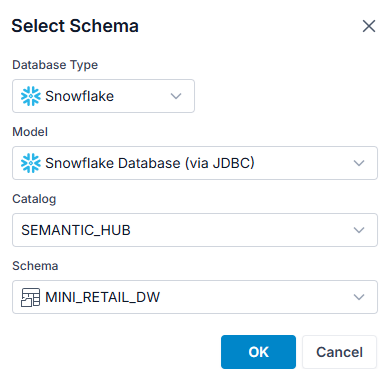
Enter the values as above and click OK.
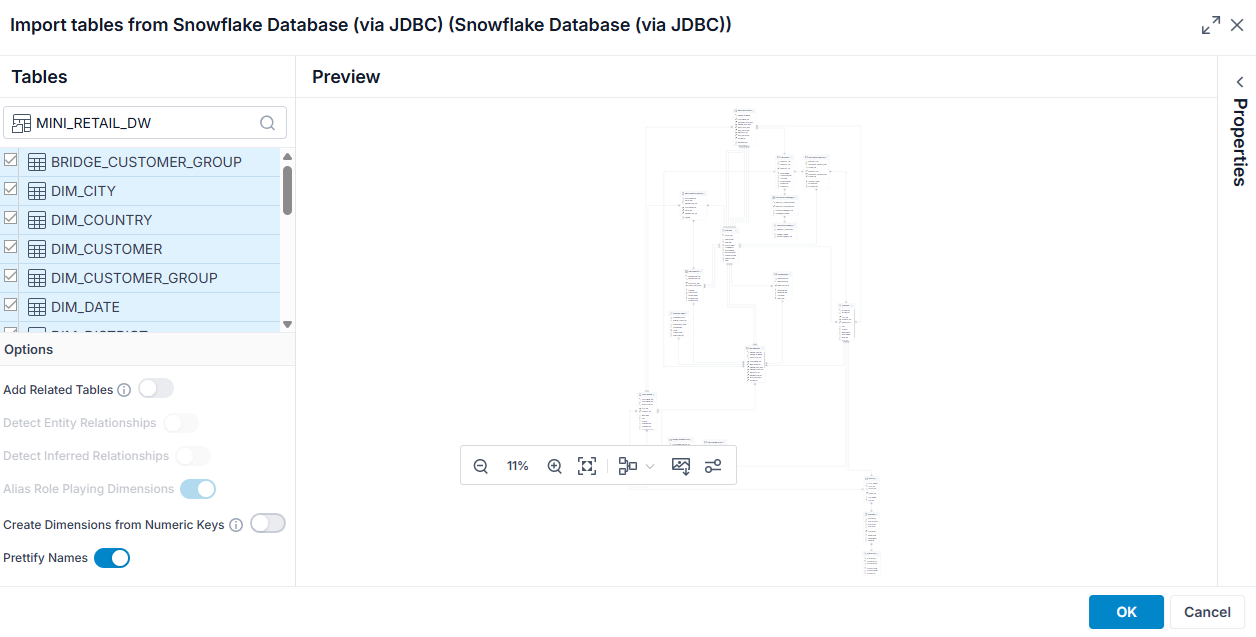
Infer Relationship When Importing a Semantic Model
Click on the Add Related Tables option and the Detect Inferred Relationships option.
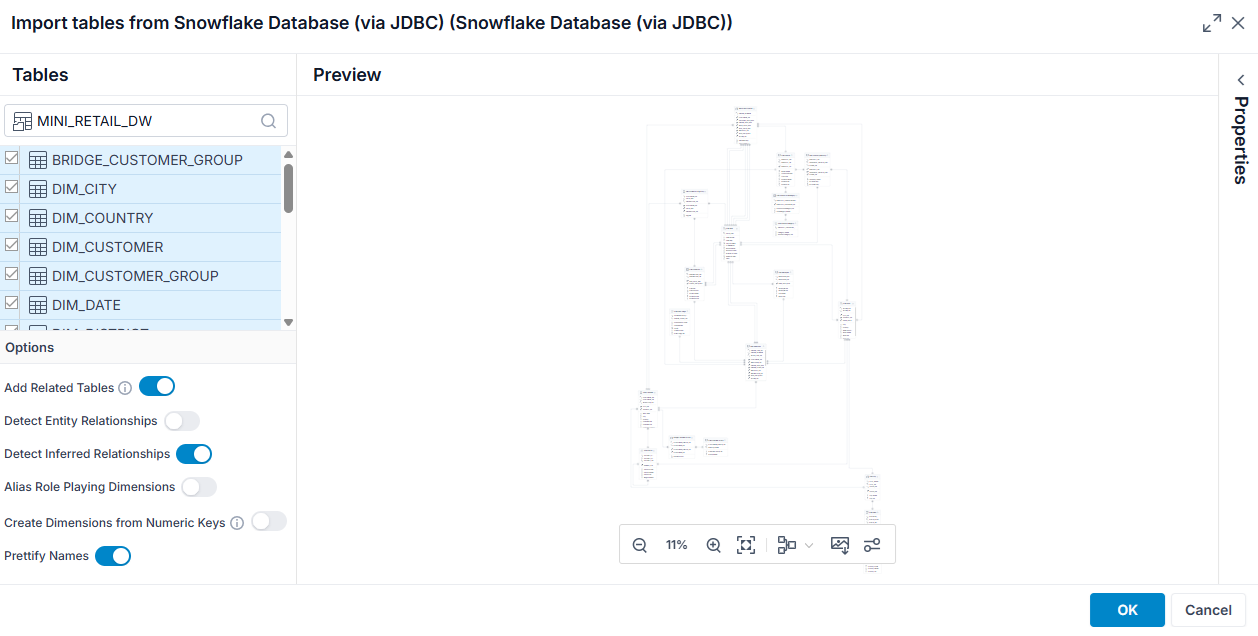
No additional relationships were found because there is no other imported model in the configuration stitched for lineage
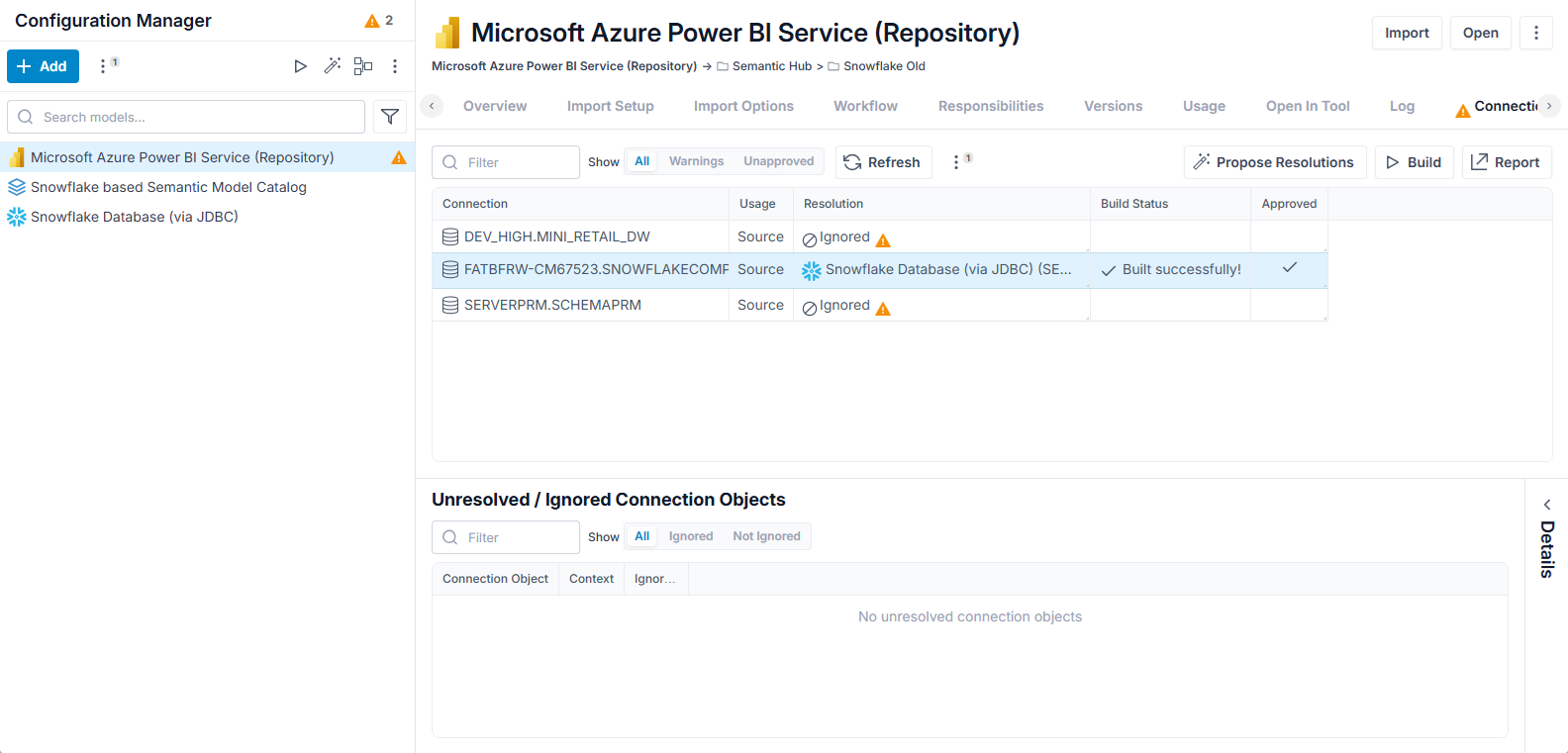
Now, include a Power BI model in the configuration stitched to the Snowflake imported model
and Tableau
and now, relationships that are defined in the BI tool are inferred into this semantic model, even thought they were not defined in the Snowflake source.
 import-semantic
Semantic Hub from Databricks
Coming soon.
Semantic Hub from Oracle
Coming soon.
Semantic Hub from Legacy BI Tools
The most advanced complex semantic models and metrics can be reverse engineered from popular enterprise analytics tools. These legacy BI tools are typically used for large, enterprise-wide data warehouses (Finance, ERP, Compliance, Audit and Reporting), or as part of packaged business applications for specific vertical markets (Finance, Healthcare, etc.). Supported legacy BI tool migration sources include MicroStrategy, SAP BusinessObjects Universe/UNX, IBM Cognos FM, Oracle OBIEE.
Semantic Hub from SAP BusinessObjects
Coming soon.
Semantic Hub from IBM Cognos
Coming soon.
Semantic Hub from MicroStrategy
Coming soon.
Semantic Hub from Modern Self-Service BI Tools
Modern self-service BI tools such as the popular Microsoft Power BI and Salesforce Tableau have dominated the analytics reporting market. They also generate a massive BI report sprawl, creating conflicting metrics across reports. Self-service BI semantic models can be migrated with accurate metric expression conversion. Semantic reconciliation can then identify and resolve conflicting metrics.
Semantic Hub from Tableau
The steps are as follows:
Steps
- Create a Semantic Model Catalog Model
- Import Semantic Model Content from a Tableau Workbook.
- Merge Semantic Model Content with another import
Example
After completing the steps above, here are the results, for each of three Target technologies:
- Deploy a Tableau based Model to Snowflake
- Deploy a Tableau based Model to Tableau
- Deploy a Tableau based Model to Power BI
Import Semantic Model Content from a BI Tool
Once you have a semantic model catalog, you may import metadata to use in semantic models directly from Tableau.
Steps
- Sign in as a user with at least the Metadata Management capability object role assignment on the semantic model catalog into which you will import.
You must also include in the same configuration an already imported model from the Tableau workbook from which you wish to import.
- Open the semantic model catalog.
- Go to the Overview tab.
- Click BI Semantic Layers under Import Sources.
- Select the BI Tool, e.g., Tableau.
- Select the Workbooks or Datasources. This will be from an already imported Tableau model in the same configuration.
If you pick multiples, then the semantic model catalog will be the result of a merge of the two or more workbooks and/or Datasources.
- Click OK.
Example
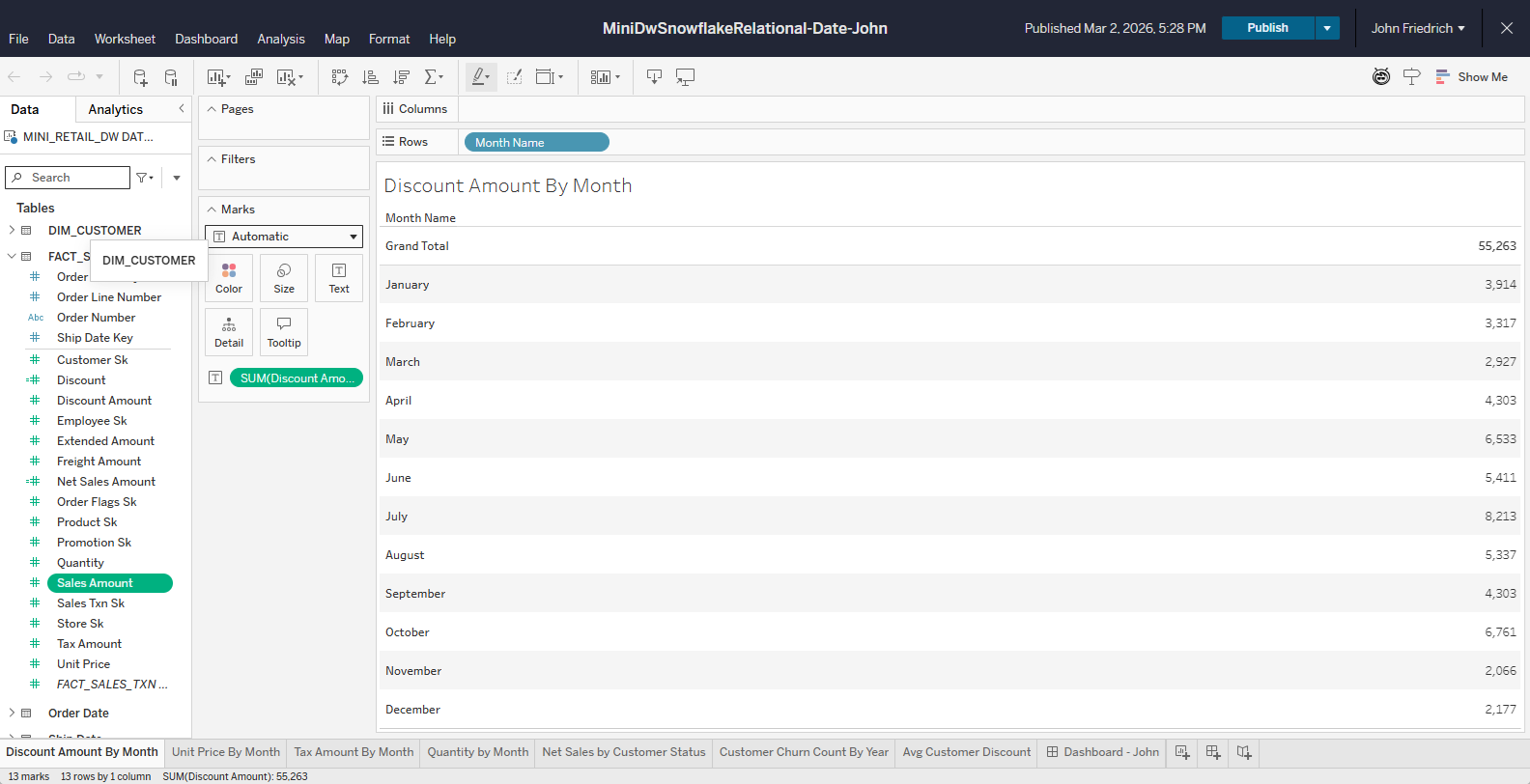
Create or Include a Tableau imported model in the current configuration.
Sign in as the Administrator user and open the semantic model catalog for the semantic model catalog which contains your model. On the Overview tab, click BI Semantic Layer under Import Sources, and select Tableau.
Pick this workbook:
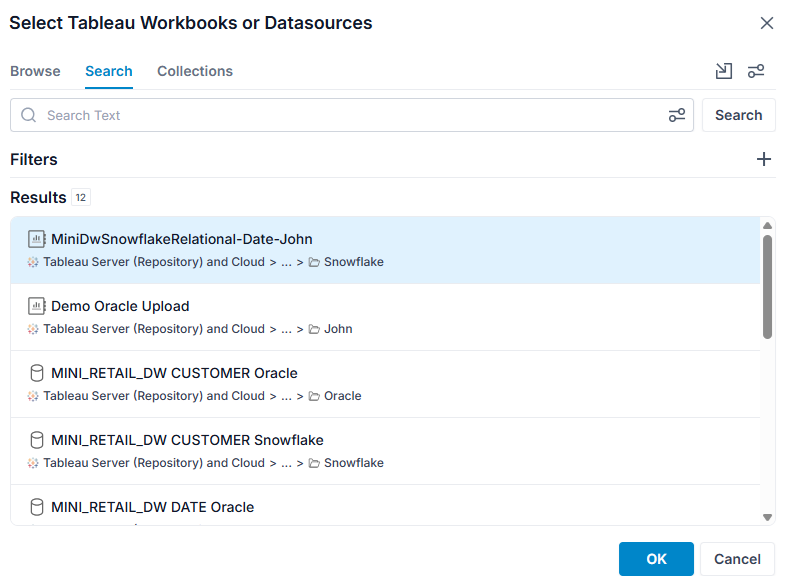
Click OK.
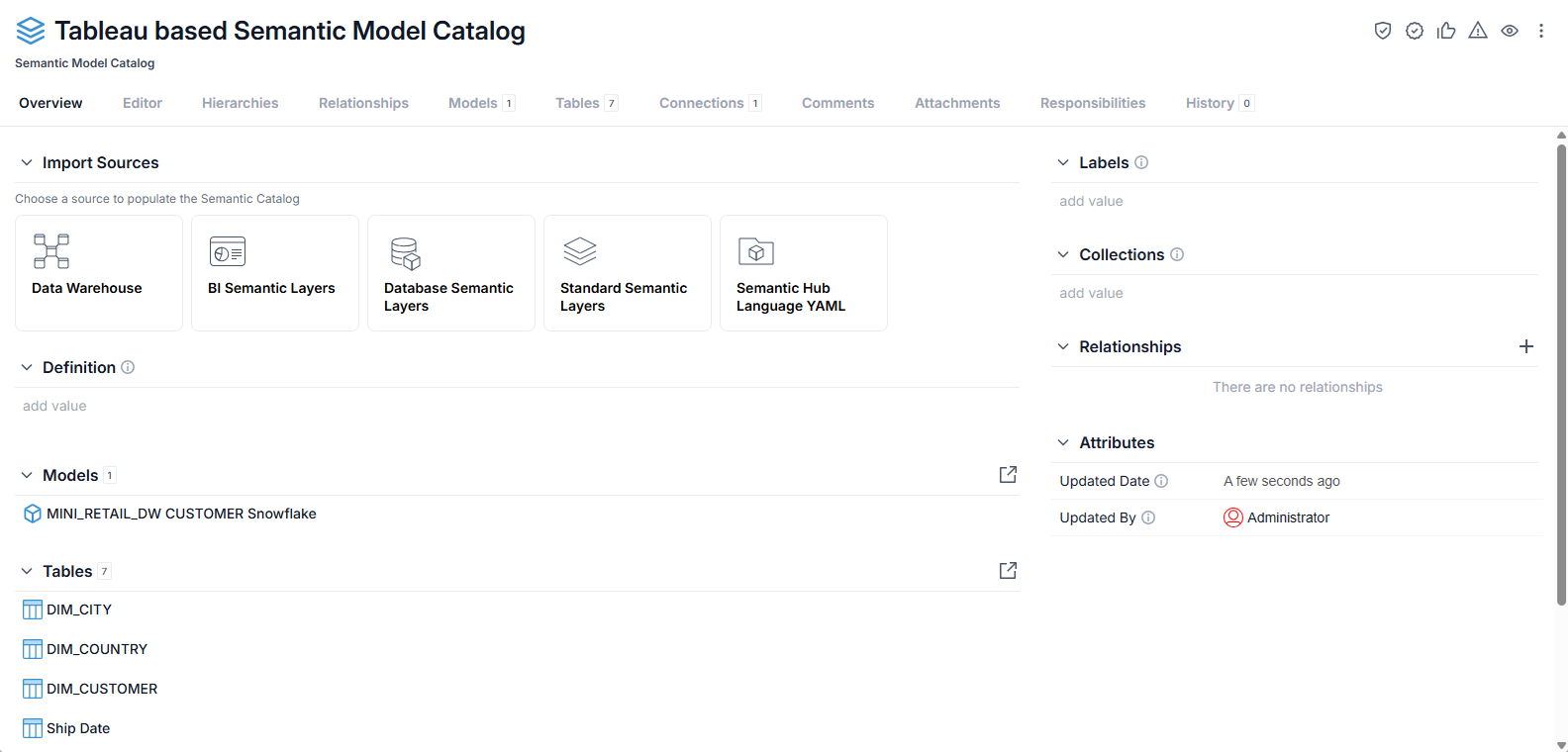
Merge Semantic Model Content with other imported Content
We imported one workbook from Tableau . Now, we will import another merging the results into this semantic model catalog.
Steps
- Sign in as a user with at least the Metadata Management capability object role assignment on the semantic model catalog into which you will import.
You must also include in the same configuration an already imported model from the Tableau workbook from which you wish to import.
- Open the semantic model catalog which already contains one or more imported contents.
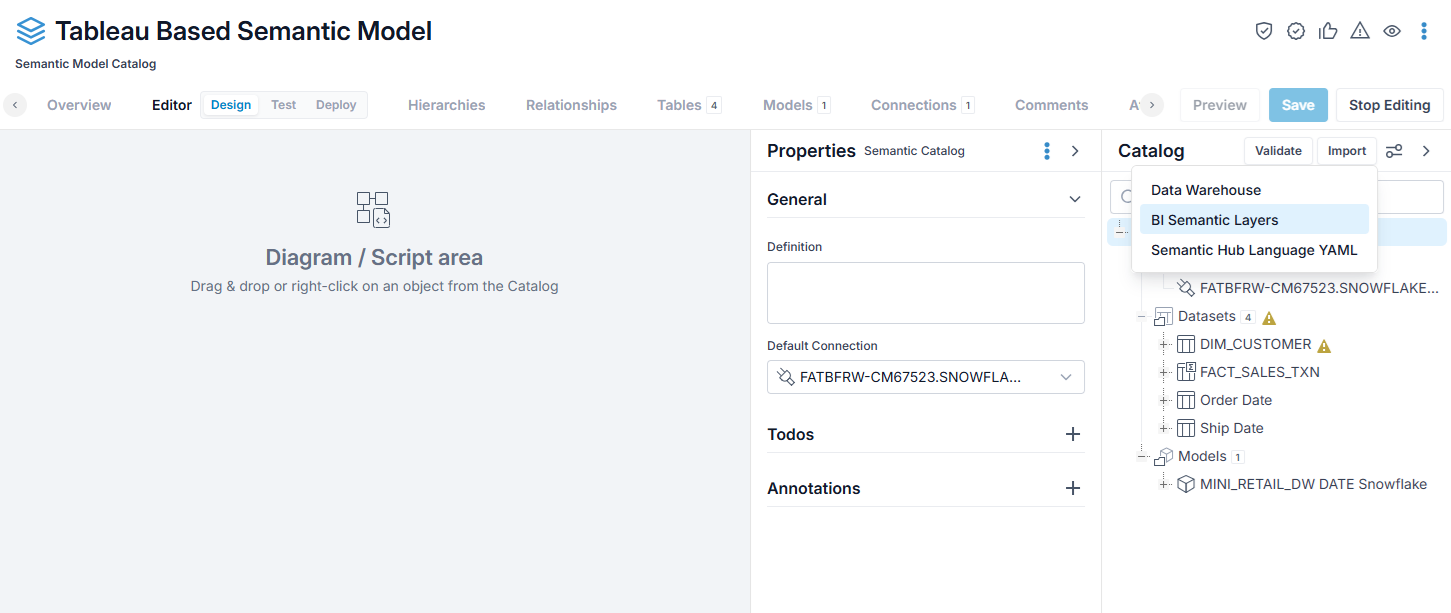
- Go to the Editor > Design tab.
- Click Start Editing.
- Click the Import button in the Catalog tab.
- Specify the source type,e.g., Tableau.
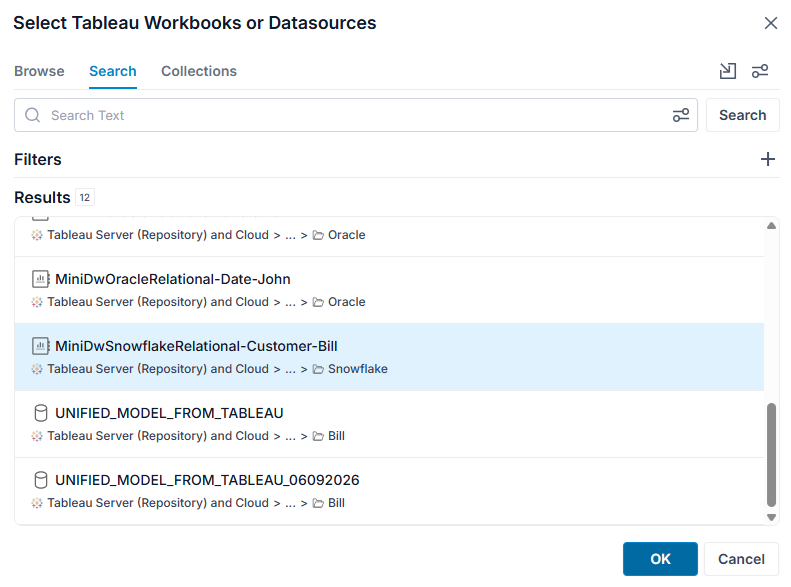
- Select the Tool object to import.
- Click Import.
If you pick multiples, then the semantic model catalog will be the result of a merge of the two or more workbooks and/or Datasources.
-
Click OK.
-
The Merge Semantic Catalogs dialog is presented There are three panels one may show:
-
Base Catalog - The catalog contents before importing and merging.
-
Imported Catalog - The contents that were just imported to be merged.
-
Merged Catalog - The contents that will be there after the merge is complete with the options specified.
-
There is only one option to the merge, otherwise the results can be edited after the merge is complete after you click Apply.
- Choose Base Value When Different - This is a "tie-breaking" policy for merge conflicts. When the base and the newly imported differ and no other rule applies, this option determines which side wins. If False then the newly imported wins (default), if True then the base wins.
Other rules that apply:
- When the difference is a name conflict: True keeps the newly imported one is given the name. If False, the base object is given the name. In each case, the loser is renamed, appending a numeral ( 1, 2, …) and keeps its original name as a synonym.
- Expression merge: where the base object base already has an expression with the same dialect but different text, then False drops the base expression and takes the newly imported text; True keeps the base and ignores overlay.
Green circles with plus signs next to objects indicate datasets which will be added after the merge is applied.
Example
Sign in as the Administrator user, open the semantic model catalog from earlier, go to the Editor > Design tab. Drag the existing semantic model content root in the Catalog tree into the Diagram / Script area.
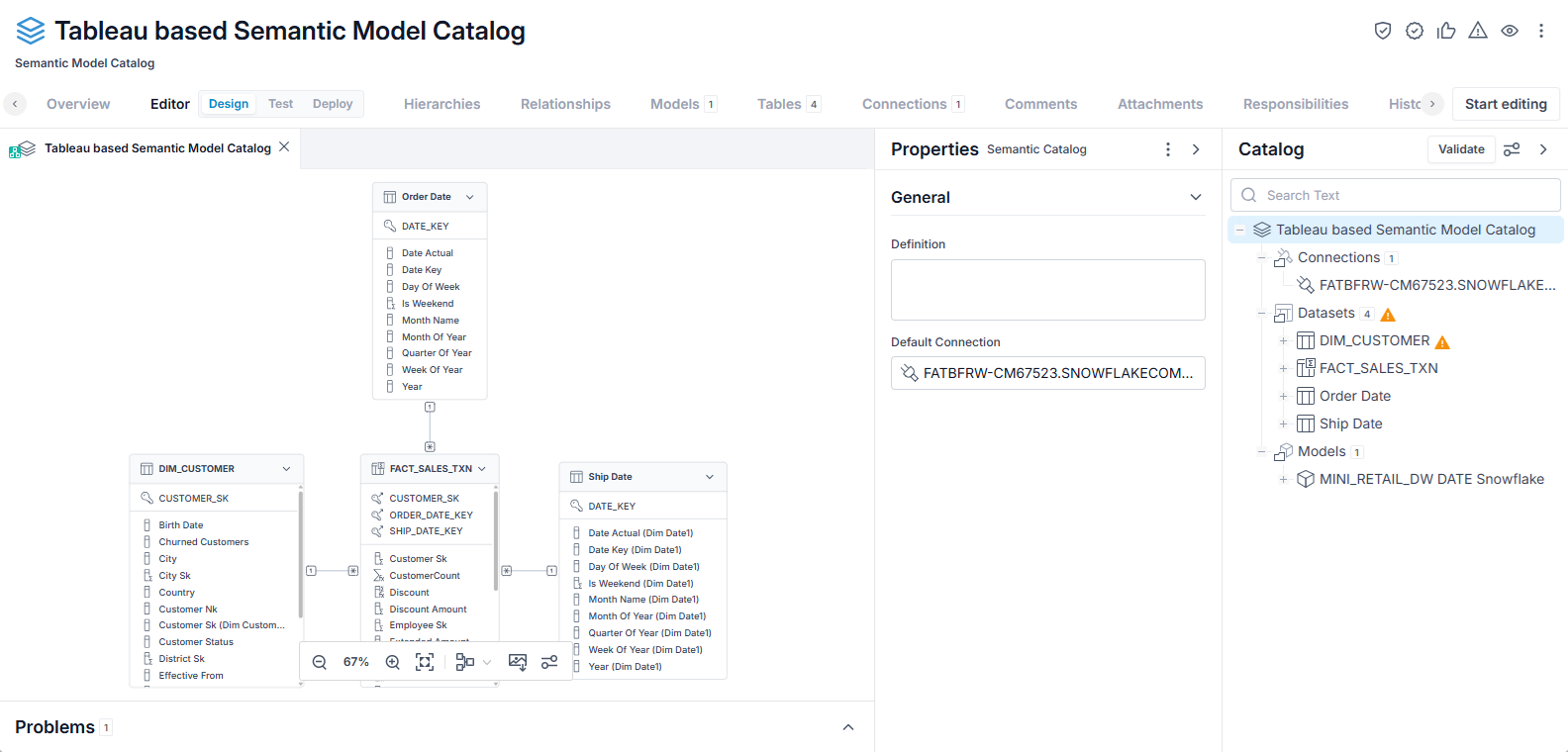
There are four tables around a central fact, as in the original workbook connection model in Tableau.
Now, we will import a second workbook. Go to the Editor > Design tab, click Start Editing and click Import under the Catalog panel. Select BI Semantic Layers.
Select Tableau and then pick this other workbook and click OK.
The proposed merge result is presented:
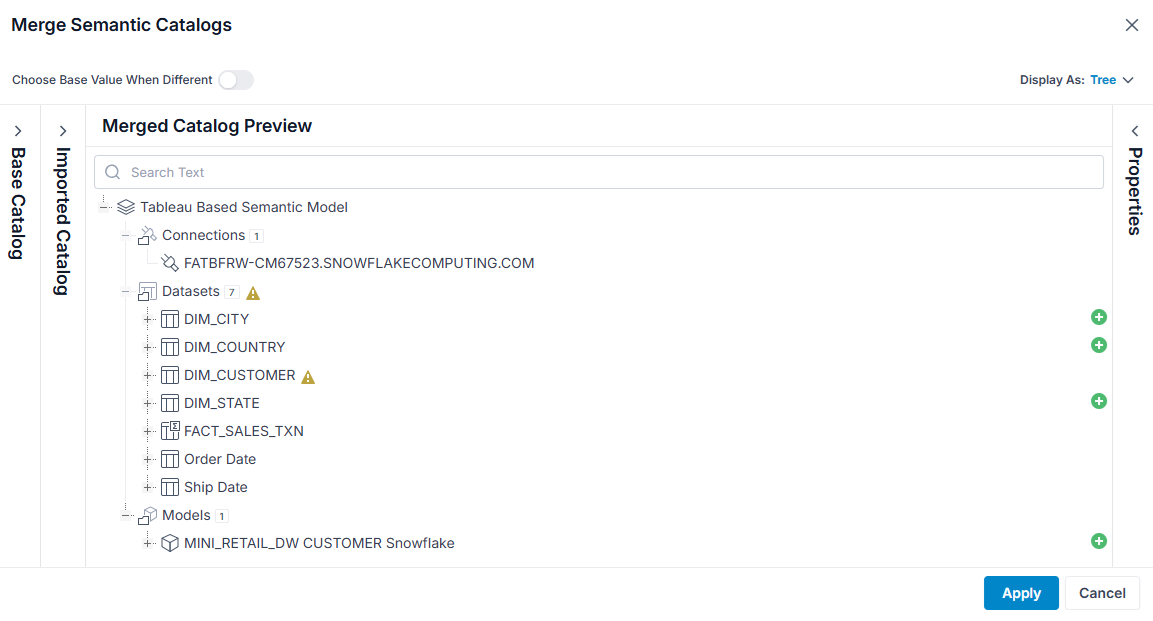
The green circles with plus signs indicate datasets which will be added.
Any editing must be performed after the merge/import. So, simply click Apply. Then Close for the log dialog.
Return go to the Editor > Design tab and drag the existing semantic model content root in the Catalog tree into the Diagram / Script area.
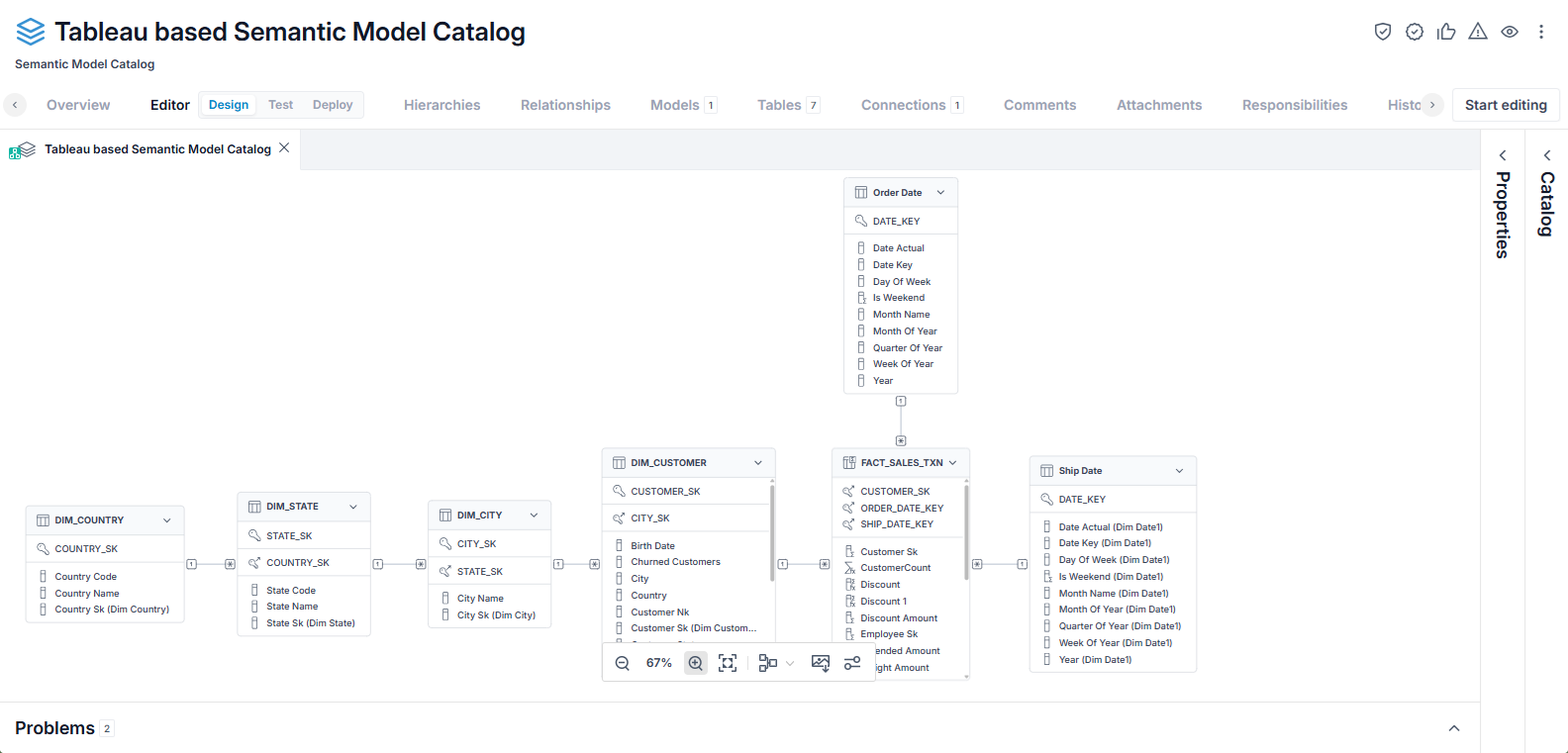
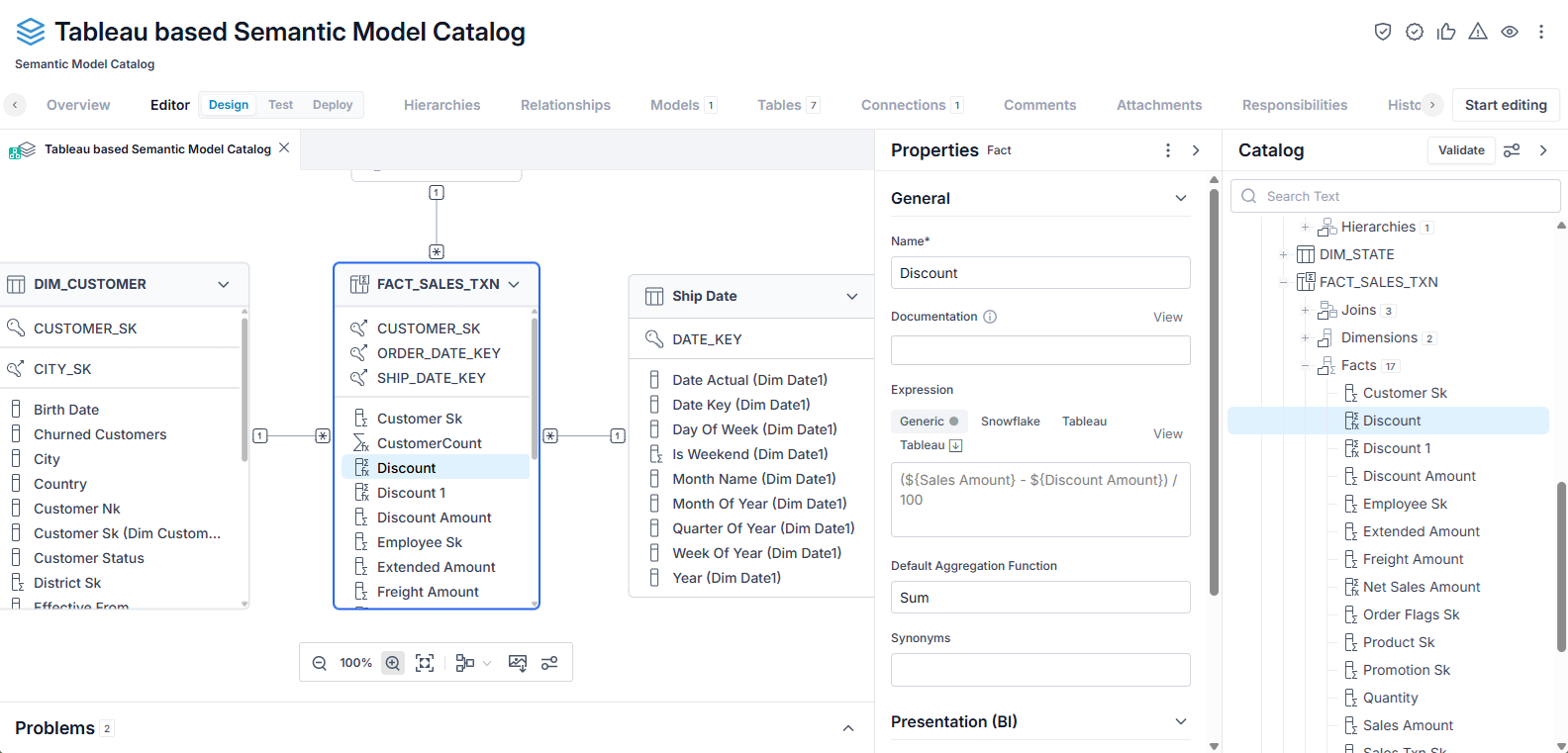
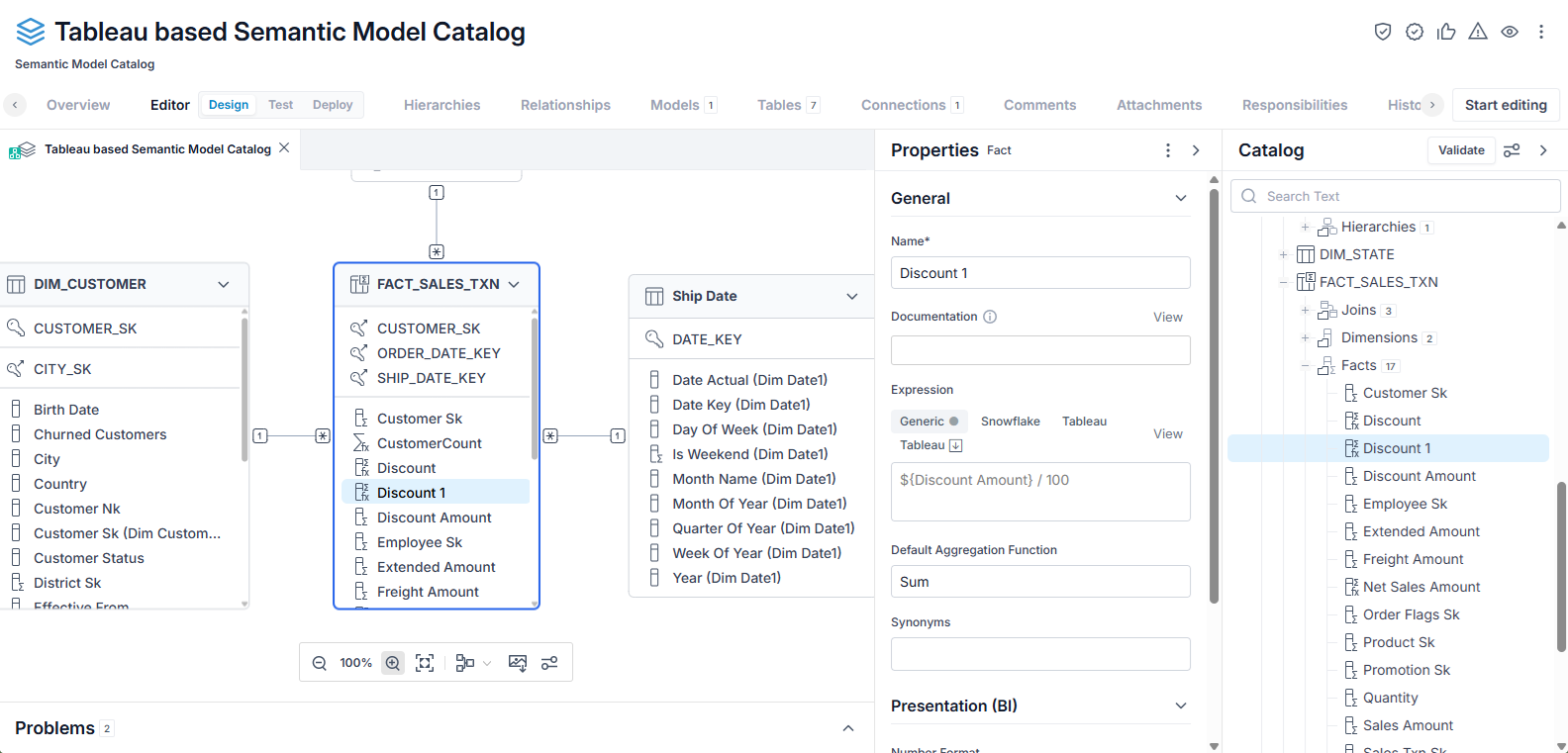
The result of the merge means there are now three additional tables. In addition there are some examples where there are identically named fields that have different properties. In the case of FACT_SALES_TXN.Discount, it exists in each of the two workbooks, but each has a different expression, so the merge created two such fields: Discount and Discount1.
Semantic Model Import Role-Playing Dimension Resolution
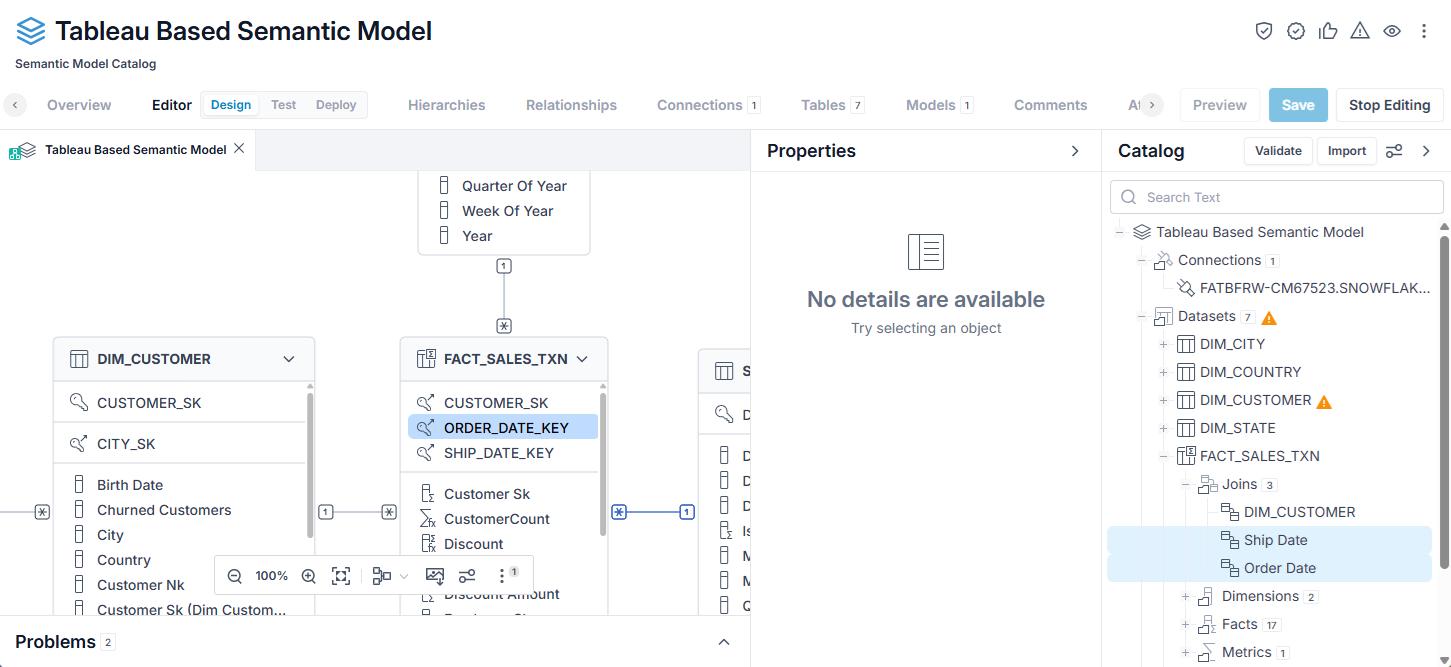
When importing the first workbook from Tableau, there were two PK-FK relationships from FACT_SALES_TXN to a foreign key DATE_KEY. Tableau identifies them with the same name, DATE. However, MetaKarta disambiguates them, in this case as Ship Date and Order Date, so that they may be used consistently in generated DDL and deployment to other technologies (such as a database or other BI tool).
Semantic Hub from Power BI
The steps are as follows:
Steps
- Create a Semantic Model Catalog Model
- Import Semantic Model Content from a BI Tool.
- Merge Semantic Model Content with another import
Before and After Schema Comparison
(coming soon)
[merge-semantic-model-content-with-other-imported-content]: